MCP Server integration
The MCP Server integration lets your team ask AI assistants such as Claude or ChatGPT questions about your InstantFeedback data. MCP (Model Context Protocol) is an open standard that connects AI assistants to external tools and data. Once the integration is set up, each user connects their assistant with their own InstantFeedback login and can then ask things like "How did NPS change last month?" or "Show me negative comments about delivery from last week."
The integration is designed to be safe by default:
- Read-only. Assistants can read analytics, results, and feedback records. They cannot change or delete anything.
- Follows user permissions. An assistant sees only the accounts and campaigns the connected user can already see in InstantFeedback.
- Privacy-aware. Recipient contact details, custom fields marked as personal data, and survey questions marked as personal data are never shared.
- Under admin control. Admins decide which assistants are allowed, which users may connect them, and which campaigns are excluded.
Before you start
- You need the admin role on the InstantFeedback account to configure the integration. Other members cannot open the MCP Server settings.
- Users need an AI assistant that supports remote MCP servers with OAuth sign-in. Claude and ChatGPT are recognised as verified clients. Other MCP clients can connect as long as they identify themselves with a client ID metadata document, which is part of the current MCP authorization specification.
-
The InstantFeedback MCP server address that users enter in their assistant is:
https://mcp.instantfeedback.si/
How access is decided
An assistant can work with an account only when all of the following are true:
- The MCP Server integration is active for the account.
- The user has AI assistant access enabled in that account (see Per-user access). New users do not have it by default.
- The assistant (client) is allowed for the account, either by the account default or by an explicit decision (see Manage clients).
- The user is active and not locked.
Within an allowed account, the assistant sees the campaigns the user has access to, minus any campaigns that were excluded (see Exclude a campaign).
Enable the integration
- Open Settings → Integrations. Each tile shows a coloured dot: green when the integration is active, red when it is not.
- On the MCP Server tile, click Settings. The first click creates the MCP Server configuration for your account and opens its settings page.
- If the page title shows a red dot, click Activate in the top-right corner and confirm.
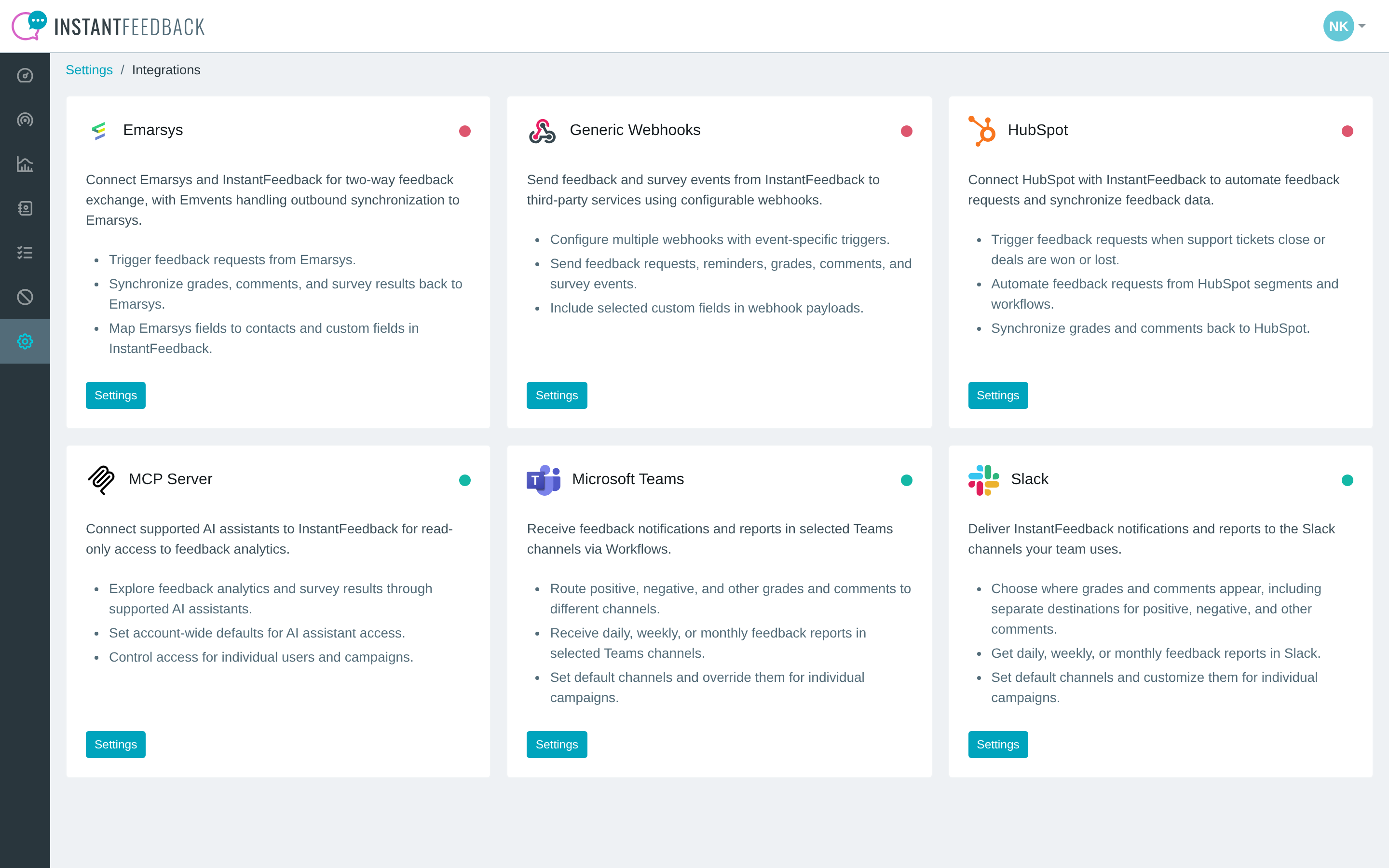
The Integrations page. The MCP Server tile is active (green dot).
After activating, enable AI assistant access for the users who should be able to connect (see Per-user access) and review the client access default in the Settings tab (see Integration settings).
Connect an AI assistant
Every user connects their own assistant. The steps below are the same for every account member; where to add the server differs slightly per assistant.
- In the AI assistant, add InstantFeedback as a remote MCP server or connector and enter the server address from Before you start. In Claude this is under Settings → Connectors → Add custom connector; in ChatGPT under Settings → Connectors. Follow the assistant's prompt to connect or sign in.
- The assistant opens InstantFeedback in your browser. Sign in if you are not signed in already; two-factor authentication applies as usual.
- InstantFeedback shows the consent page. Check the assistant's name and hostname, read what data it will get, and confirm the accounts listed under Accounts that will be accessible.
- Click Allow access. You are sent back to the assistant, which is now connected.
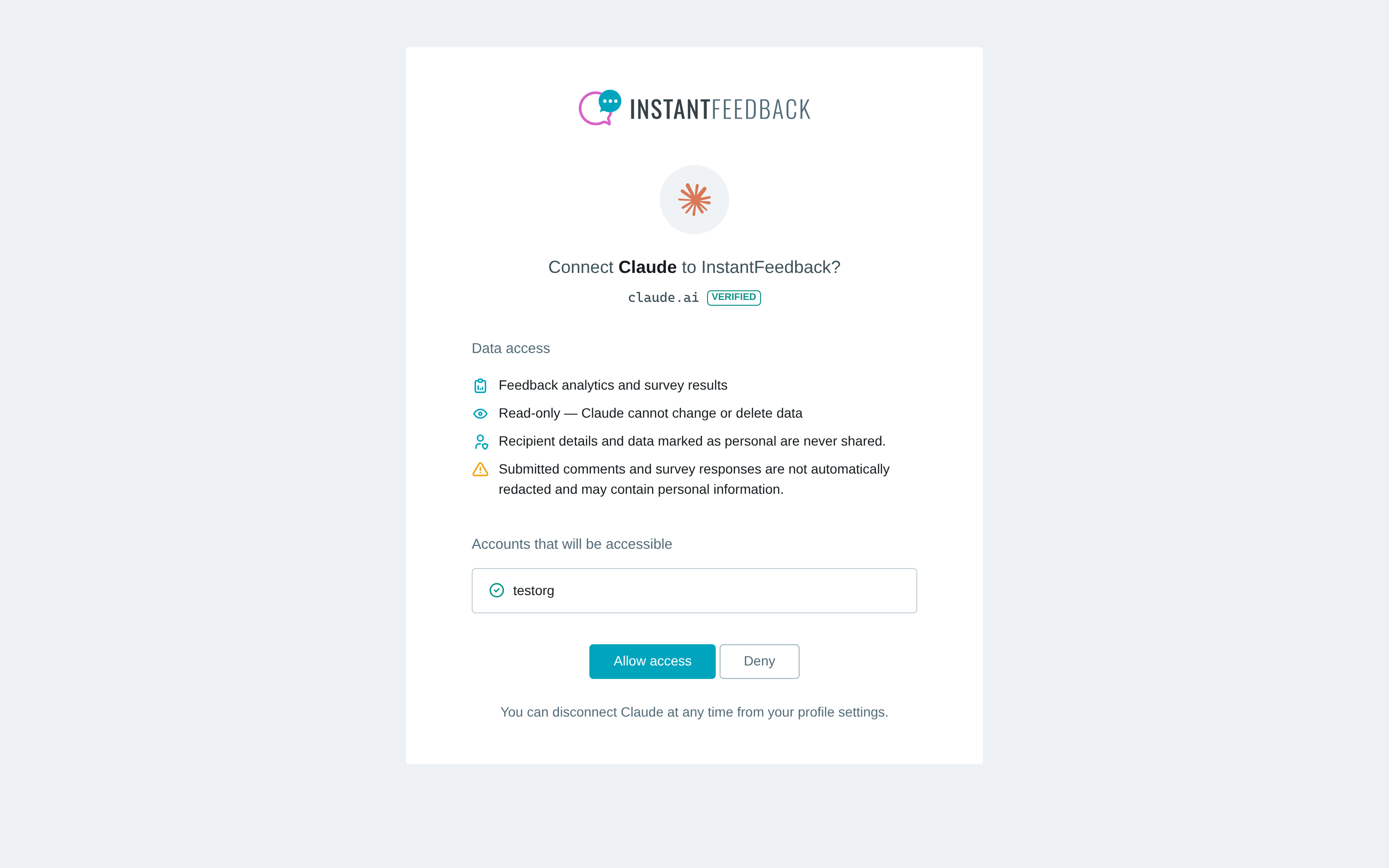
The consent page. A Verified badge means InstantFeedback has confirmed the client's identity.
Restricted accounts
If the assistant is blocked for one of your accounts, the consent page lists that account under Restricted accounts. As an admin you can tick Allow … for this account and allow the client on the spot. As a member you can tick Ask an administrator to allow this client and click Send access request; you will be emailed when an admin decides, and you then start the connection again from the assistant.
If you belong to several accounts, the assistant works with one account at a time and asks which one to use when a question could apply to more than one.
Every connection is tied to you personally. You can see and disconnect your assistants at any time under User settings → AI assistants (see Your connected assistants).
What the assistant can do
Once connected, the assistant has a set of read-only tools:
| Ask about | What the assistant can do |
|---|---|
| Accounts, campaigns, surveys, tags | List the accounts you can use, the campaigns and surveys (with their questions) in an account, and the tag definitions. |
| Available data | Describe what feedback data exists for an account, such as the date range and totals, before digging in. |
| Feedback metrics | Compute exact metrics such as NPS, CSAT, average grade, response rates and counts, filtered by campaign, period, tag, or custom field, and grouped by up to two dimensions. |
| Survey results | Analyse a survey's funnel and drop-off, per-question results for structured questions, and a small sample of free-text answers. |
| Individual feedback | Browse feedback records sorted by date or grade, read comment excerpts, and open the full details of selected records, including tags, custom field values, and survey answers. |
| Usage | Report monthly request usage per campaign and how much of a response cap has been used. |
Dates are interpreted in the account's time zone. Large results are paginated or capped, so the assistant may narrow a broad question, for example by asking for a shorter period.
Example questions
The assistant combines these tools on its own, so you can ask in plain language. All numbers come straight from InstantFeedback; the assistant does not estimate them.
Metrics and trends
- "What was our NPS last quarter, and how does it compare with the quarter before?"
- "Give me the average grade per campaign for the last 30 days."
- "How many feedback requests did we send in August, how many were graded, and what was the response rate?"
- "Break down last month's grades by channel: SMS, email, and widget."
- "Which tags show up most often on negative feedback this year?"
- "Compare CSAT between the stores in our Store custom field for this month."
Comments and individual feedback
- "Show me the ten most recent negative comments from the Car service campaign."
- "Summarise what customers complained about last week and group the complaints into themes."
- "Find September comments that mention delivery times and give me the full details of the three lowest-graded ones."
Surveys
- "How many people started the onboarding survey last month, how many finished it, and where did they drop off?"
- "Summarise the answers to the third question of the onboarding survey."
- "Show me a few example answers to the open question at the end of the NPS survey."
Campaigns and usage
- "Which campaigns exist in this account, and which grading scale does each one use?"
- "How many requests has each campaign used this month, and how close are we to the response cap?"
Tip
Name the campaign, period, or account in your question when you can. The assistant then goes straight to the right data instead of asking you to choose.
What the assistant cannot see
- Recipient phone numbers, email addresses, and other contact identifiers.
- Custom fields marked as personal data, and answers to survey questions marked as personal data. These are left out entirely.
- Feedback records that were masked (anonymised).
- Campaigns that are excluded from AI assistant access, and campaigns the user cannot access.
- Anything in an account where the integration is inactive, the user is not enabled, or the client is blocked.
Comments are shared verbatim
Customer comments and free-text survey answers are passed to the assistant as written. They are not redacted automatically and may contain personal information that customers typed themselves.
Manage clients
The Clients tab lists every assistant that has connected to your account, plus verified clients you can allow or block in advance. The badge on the tab shows how many access requests are waiting for a decision.
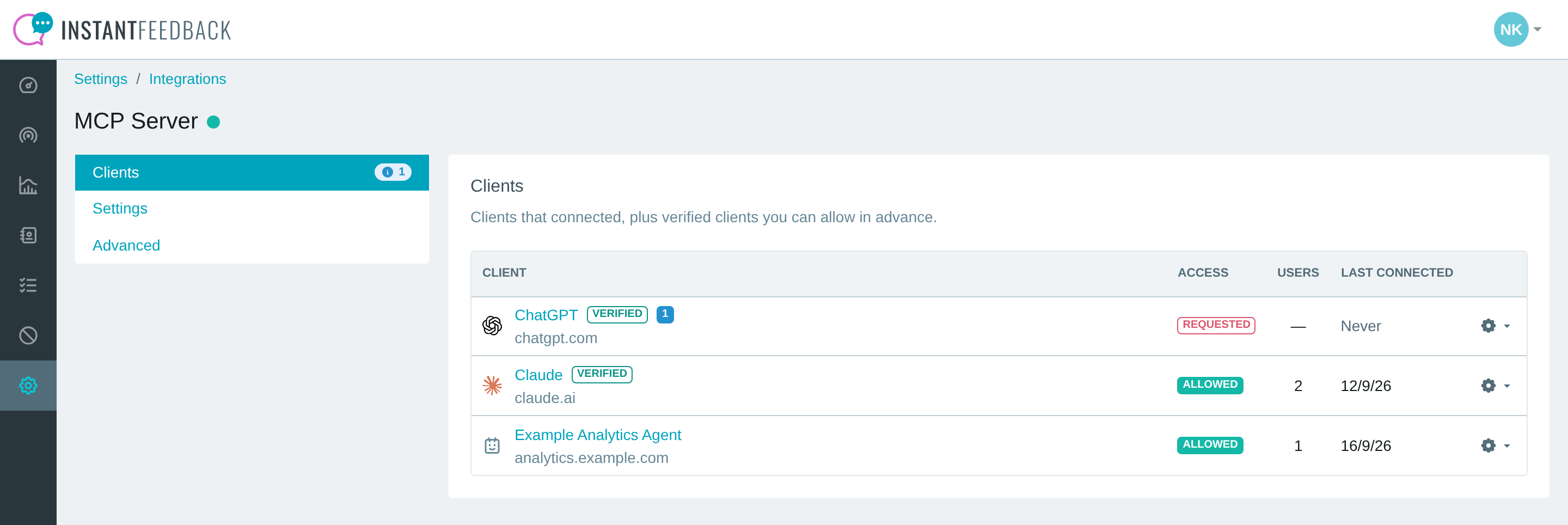
The Clients tab. One client has a pending access request, the others are allowed.
| Column | Meaning |
|---|---|
| Client | The assistant's name and hostname. Verified means InstantFeedback has confirmed its identity. A number badge shows pending access requests. |
| Access | Allowed or Blocked for this account, Requested when users are waiting for a decision, or Inactive when the integration is deactivated. |
| Users | How many users in the account have connected this client. |
| Last connected | When a user most recently connected it. |
Click the gear icon at the end of a row to change the decision for that client.
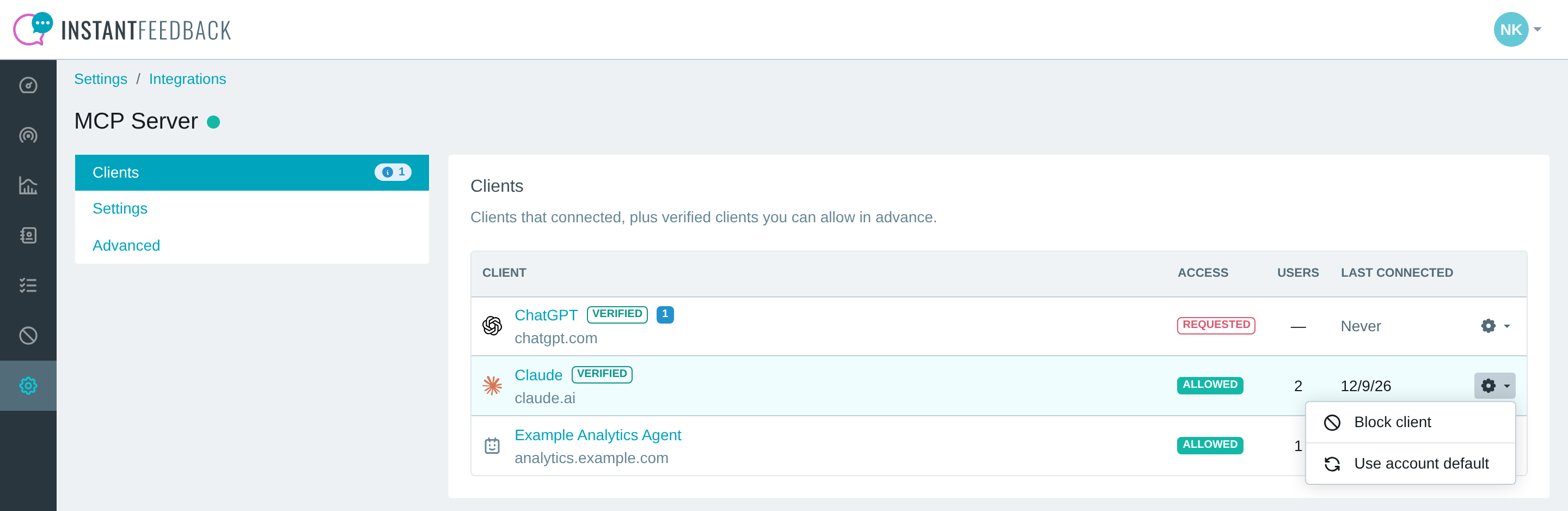
The client menu. The options depend on the client's current state.
| Action | What it does |
|---|---|
| Allow client | Allows the client for everyone in the account. Any pending access requests for it are approved. |
| Block client | Blocks the client for everyone in the account. Users keep their connections, but the client cannot read any data until it is allowed again. |
| Use account default | Removes the explicit decision so the client follows the Client access default from the Settings tab. |
Note
Allowing a client applies to the whole account, not to individual users. Combine it with Per-user access to control who may use it.
Click a client's name to see its details: hostname, client ID, who made the access decision and when, and a list of every user who connected it with their current status.
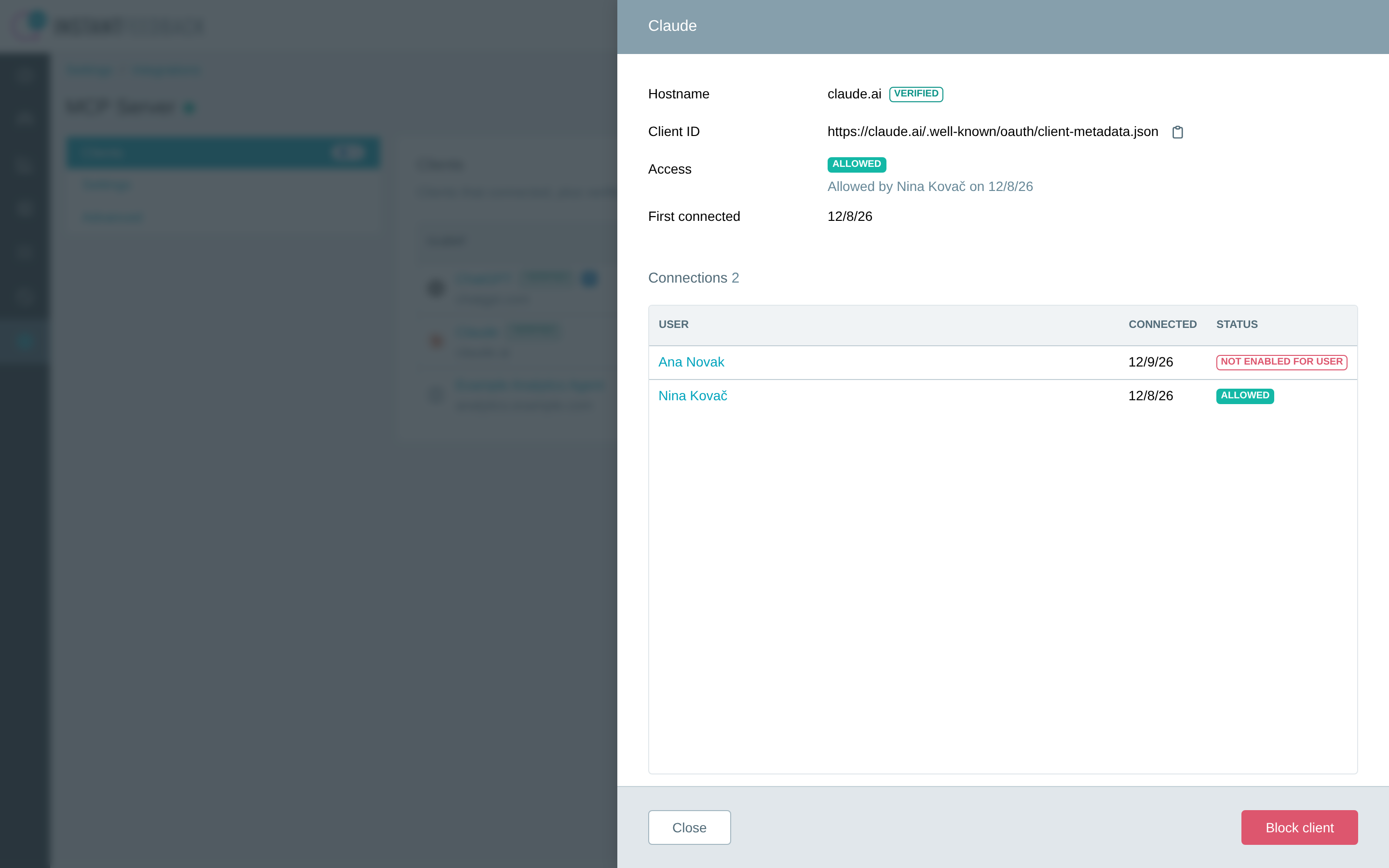
Client details. Each connection shows whether the user can currently use the client.
| Connection status | Meaning |
|---|---|
| Allowed | The user can use this client with the account right now. |
| Not enabled for user | AI assistant access is switched off for this user in the account. |
| User locked / User inactive | The user cannot sign in, so the connection is inactive. |
| Client blocked | The client is blocked for the account. |
| Integration disabled | The integration is deactivated for the account. |
Access requests
When User access requests is switched on in the Settings tab, members who run into a blocked client can ask for it from the consent page. Every admin of the account receives an email, and the client shows up on the Clients tab with a Requested badge.
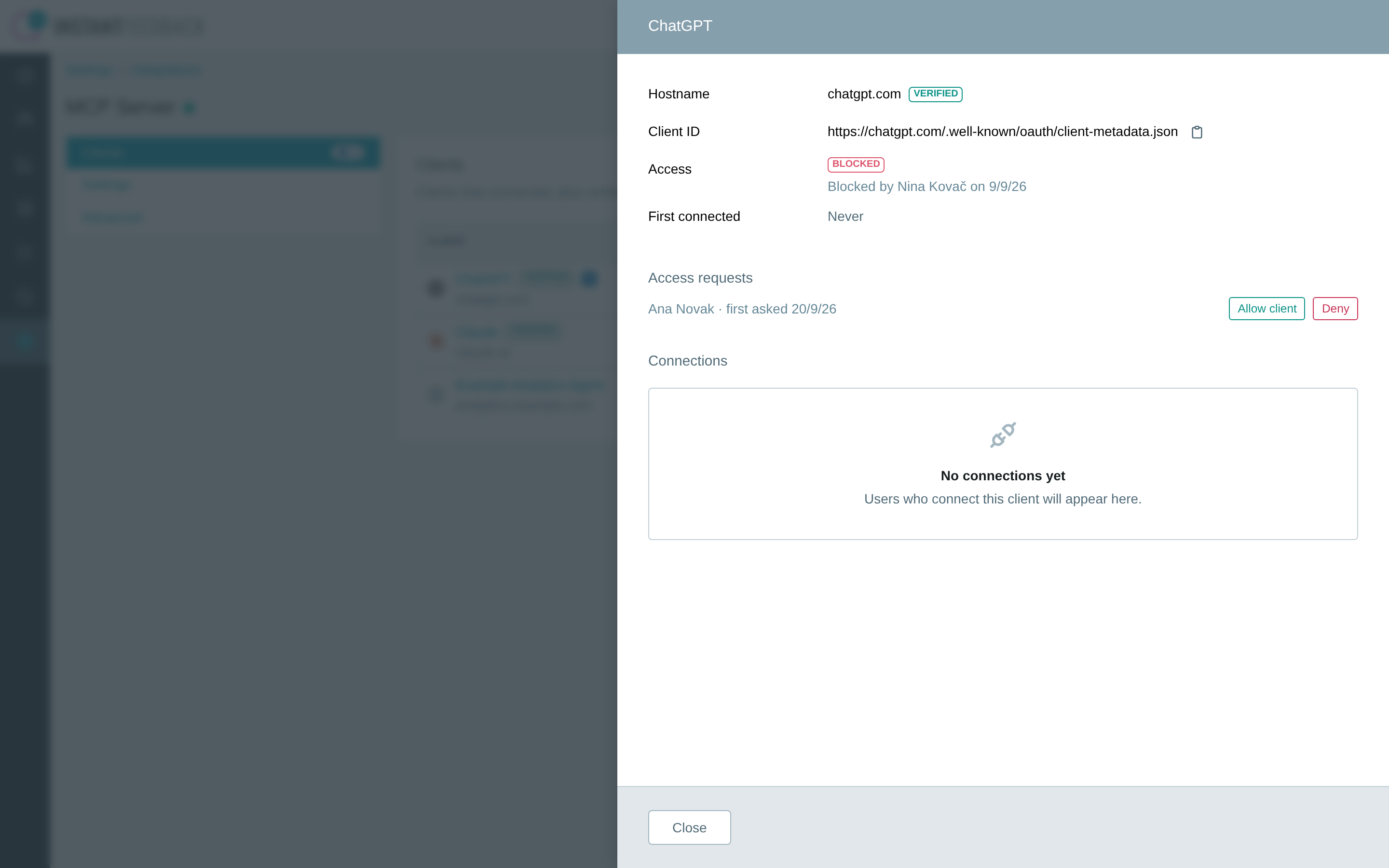
A pending access request in the client details, with Allow client and Deny buttons.
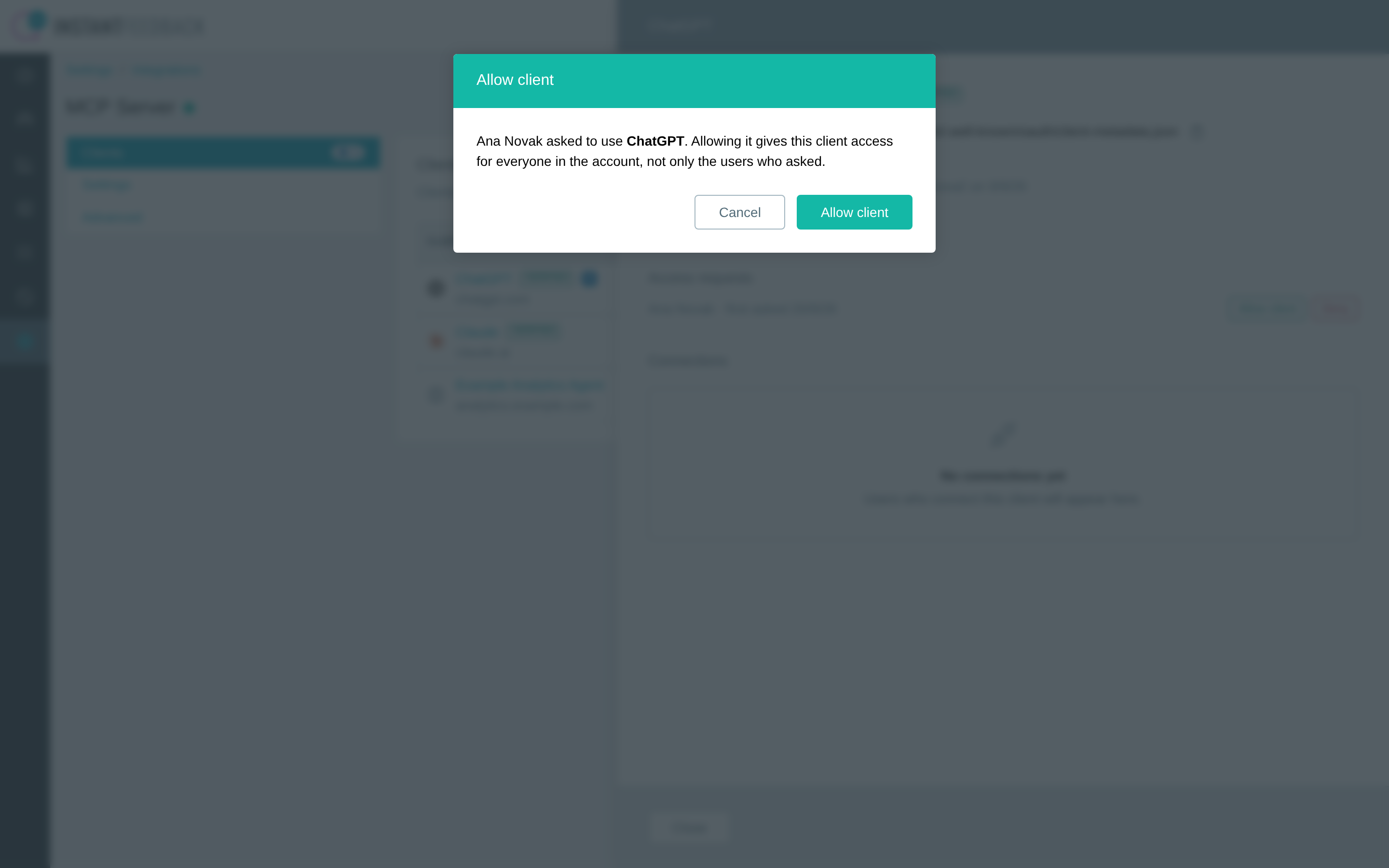
Allowing a client from a request allows it for everyone in the account.
- Allow client approves the request and allows the client for the whole account. Requesters receive an email and need to start the connection again from their assistant.
- Deny refuses the request. Requesters receive an email and cannot ask for this client again. You can still allow the client later from the Clients list.
Integration settings
The Settings tab holds the two account-wide defaults. Click Edit to change them.
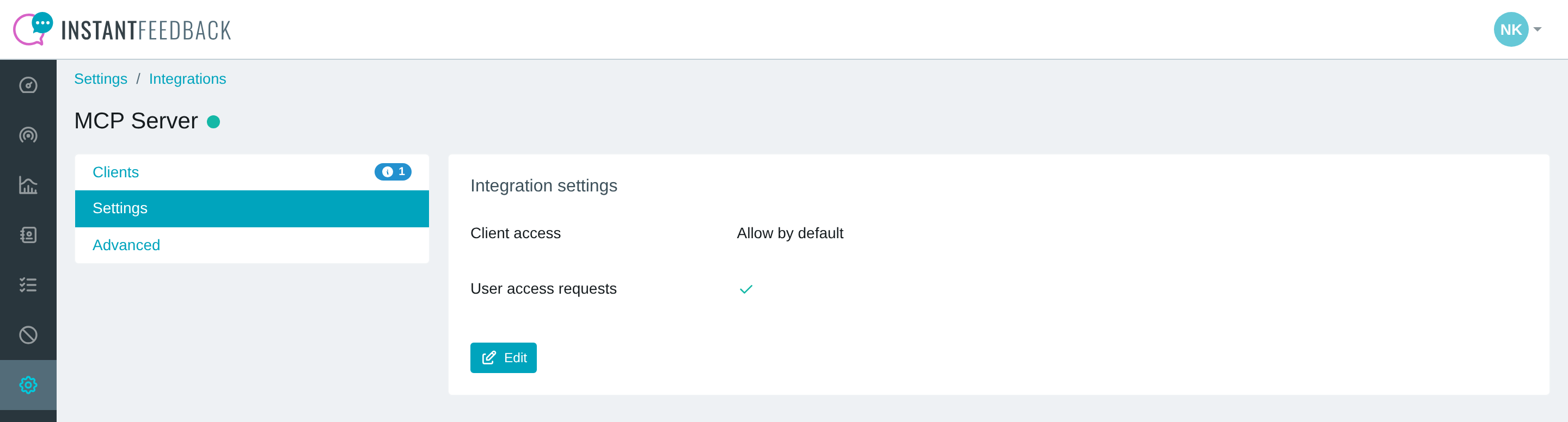
The Settings tab.
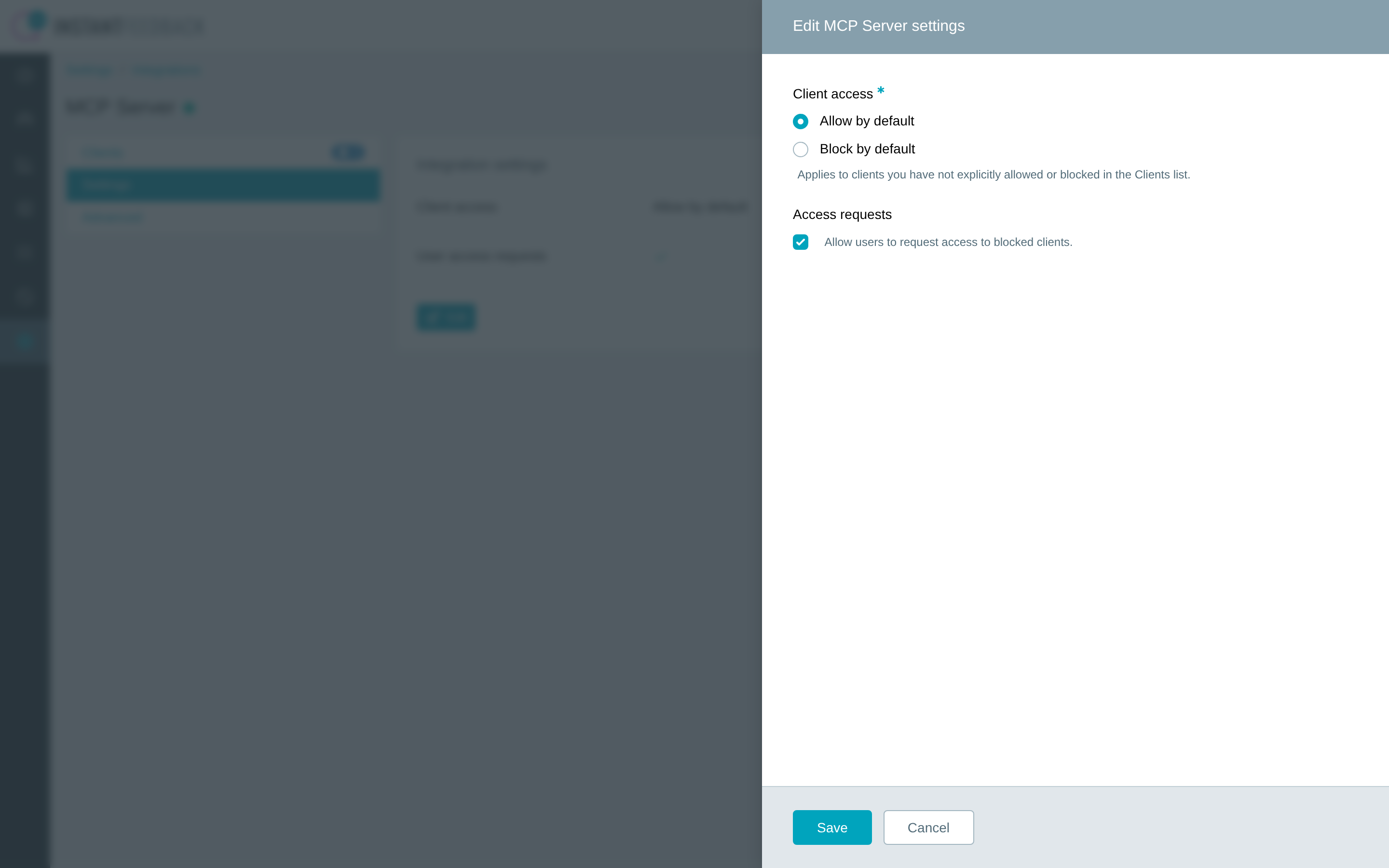
Choose the default for new clients and whether users may request access.
| Setting | What it does |
|---|---|
| Client access | Allow by default lets any client connect unless you block it. Block by default blocks every client until you allow it. The default applies only to clients without an explicit decision in the Clients list. |
| Access requests | When on, members who hit a blocked client can ask an admin for it from the consent page. |
Recommended for stricter organisations
Set Client access to Block by default and switch Access requests on. Admins then approve each assistant once, and members can still ask for the ones they need.
Switching the default to Allow by default approves any pending requests for clients that are not explicitly blocked.
Per-user access
AI assistant access is switched off for every user until an admin enables it. Open Settings → Users, choose the user, and select the AI assistants tab.
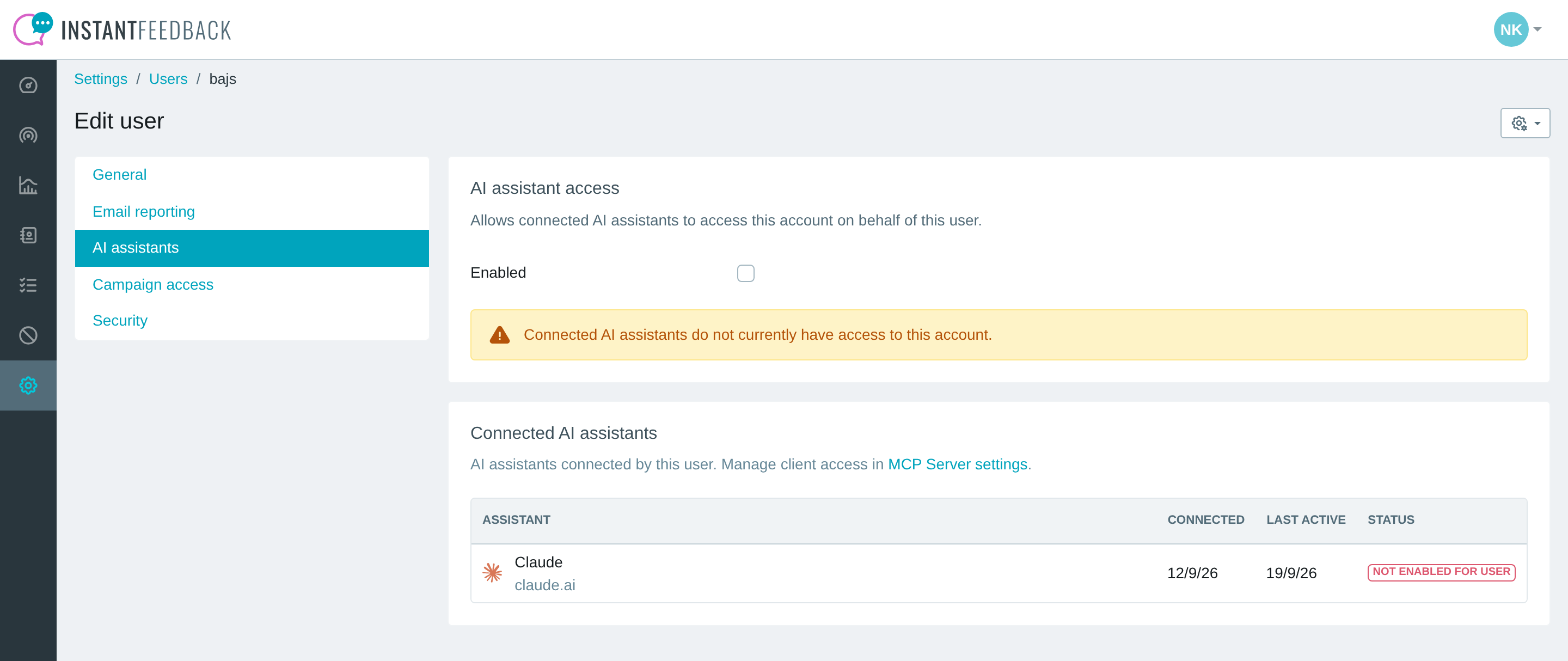
Per-user access. The list shows the assistants this user has connected and their status.
- Switch Enabled on to let connected assistants access this account on behalf of the user, then click Save.
- The Connected AI assistants list shows what the user has connected, when it was last active, and whether it currently has access.
- Locking a user also cuts off their assistants for this account.
Exclude a campaign
By default, assistants can read every campaign the user has access to. To keep a campaign out, open the campaign, go to Integrations, select the MCP Server tab, switch Exclude campaign on, and click Save.
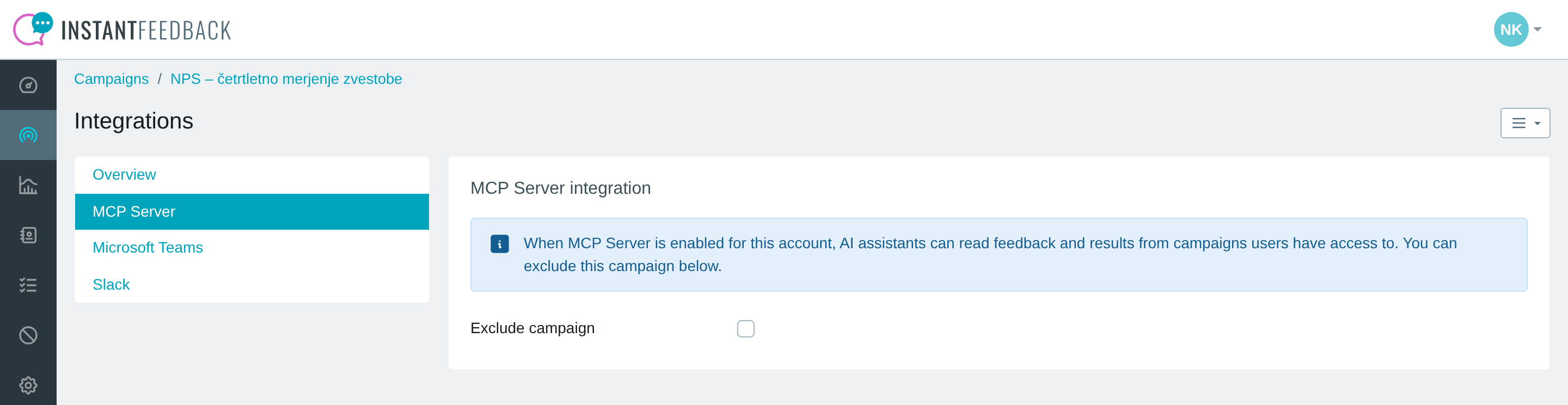
Excluding a single campaign from AI assistant access.
The Advanced tab of the MCP Server settings shows how many campaigns are excluded and lists them under View excluded campaigns.
Your connected assistants
Every user can review and disconnect their own assistants. Open User settings from the menu in the top-right corner and select the AI assistants tab.
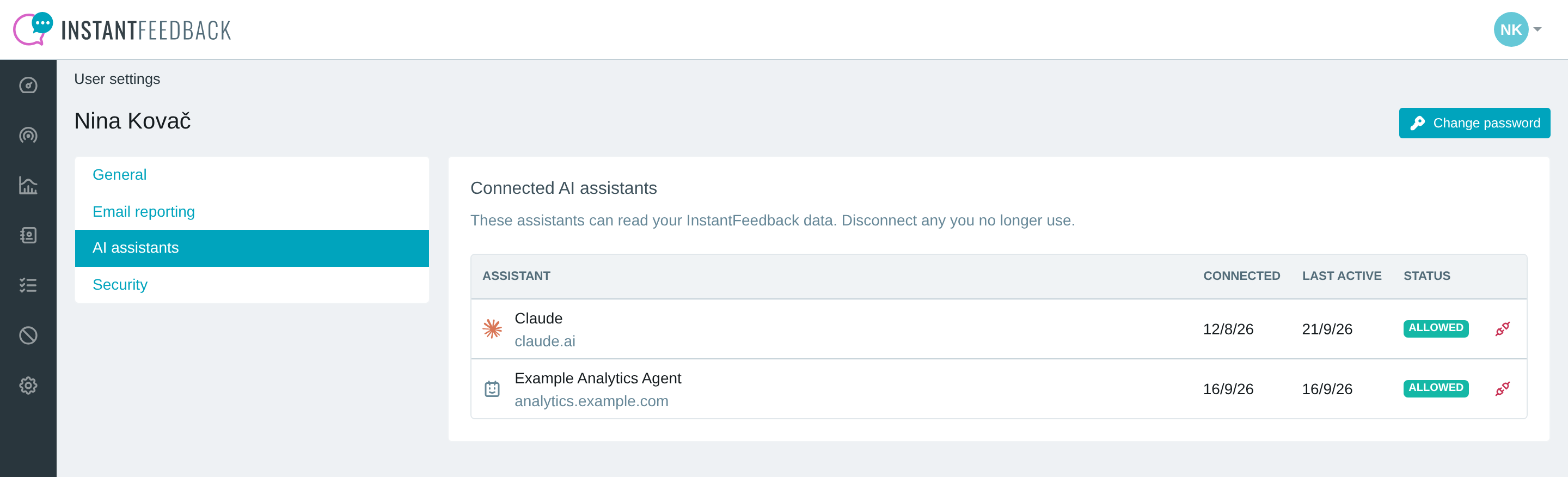
Your connected assistants, with the disconnect action at the end of each row.
Click the disconnect icon at the end of a row and confirm. The assistant immediately loses access to all your accounts and has to be connected again from the assistant if you need it later.
Pause, reset, or remove
The Advanced tab offers two account-wide actions.
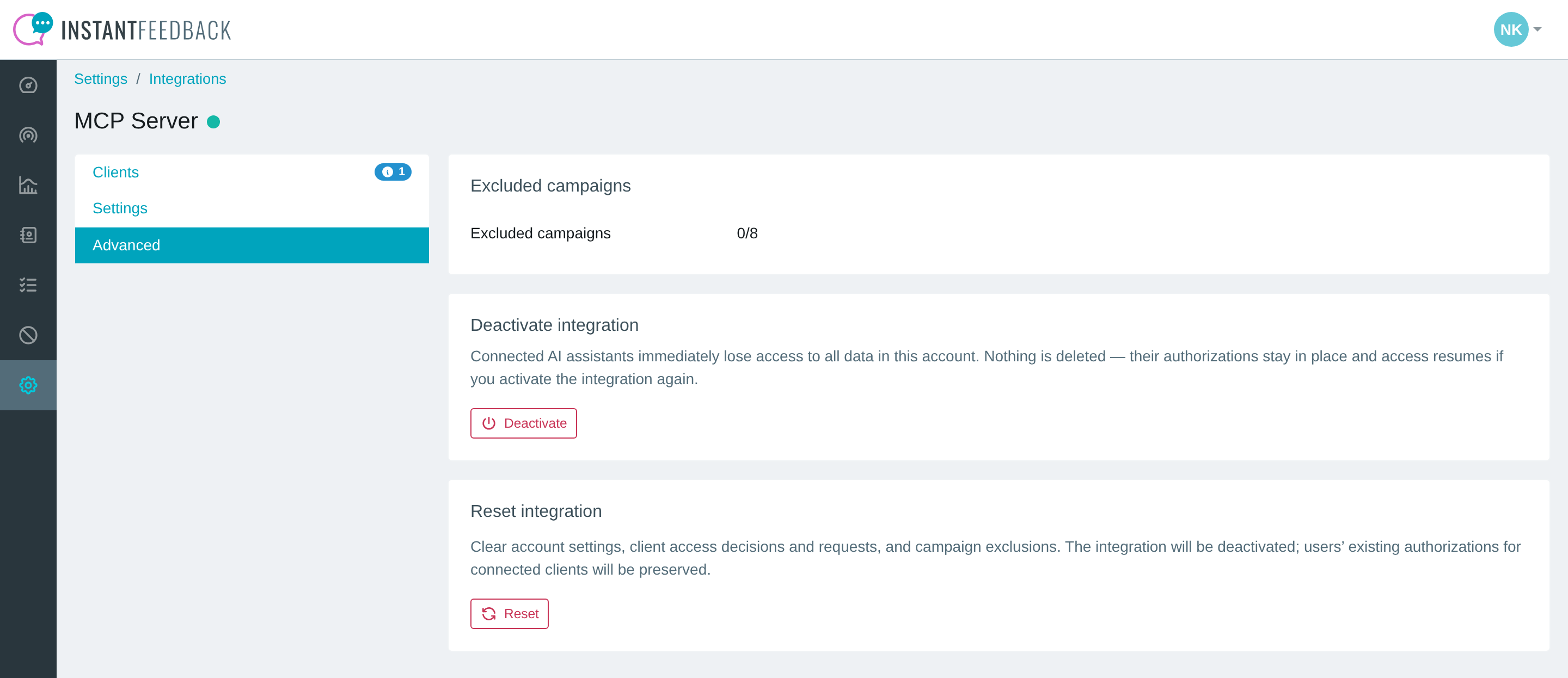
The Advanced tab.
- Deactivate stops all assistant access to the account immediately. Nothing is deleted; users' connections stay in place and work again when you activate the integration.
- Reset clears the account settings, all client decisions and requests, and all campaign exclusions, and deactivates the integration. Users' connections are kept. This cannot be undone.
Cutting off one assistant completely
Blocking a client stops it for the whole account, while users' connections remain. To remove a connection entirely, the user disconnects the assistant under User settings → AI assistants.
Troubleshooting
| Message or symptom | What to do |
|---|---|
| MCP access is not available for this user. | AI assistant access is not enabled for this user in any account with an active integration. An admin enables it under Settings → Users → AI assistants. |
| This application could not be verified. | The assistant did not present a valid client ID metadata document. It is either not supported or misconfigured. Try a recognised assistant such as Claude or ChatGPT. |
| This authorization request has expired or is no longer valid. | The connection took too long or was already used. Start it again from the assistant. |
| … cannot be connected. | An admin has blocked the client for every account you belong to, or a previous request was denied. Ask an account admin to allow the client from the Clients tab. |
| Your request is still being reviewed. | An admin has not decided yet. You will get an email when they do. |
| The assistant reports that no accounts or campaigns are available. | Check the connection status in the client details: the integration may be deactivated, the user not enabled or locked, the client blocked, or every campaign excluded. |
| The assistant keeps asking which account to use. | You belong to several accounts. Name the account in your question, and the assistant reuses it for the rest of the conversation. |
| The assistant lost access after a long pause. | Connections refresh automatically for 30 days of inactivity. After that, disconnect the assistant under User settings → AI assistants and connect it again. |
| A result is cut off or the assistant says it is too large. | Ask for a narrower selection, for example fewer campaigns or a shorter period. |