Slack integration
The Slack integration delivers InstantFeedback notifications and reports to the Slack channels your team uses. Once it is set up, your team gets:
- A message for every new grade, and a separate message for every comment. Positive, negative, and other comments can go to different channels.
- Daily, weekly, or monthly feedback reports per campaign.
- Account-wide default channels, with the option to override them for individual campaigns.
Messages flow one way, from InstantFeedback to Slack. The integration uses Slack incoming webhooks, so it never reads anything from your workspace.
Before you start
- You need the admin role on the InstantFeedback account. Other members can view the Slack settings but cannot change them.
- You need permission to add apps to your Slack workspace, or a workspace admin who can approve the request.
Enable the integration
- Open Settings → Integrations. Each tile shows a coloured dot: green when the integration is active, red when it is not.
- On the Slack tile, click Settings. The first click creates the Slack configuration for your account and opens the Slack settings page.
- If the page title shows a red dot, click Activate in the top-right corner and confirm.
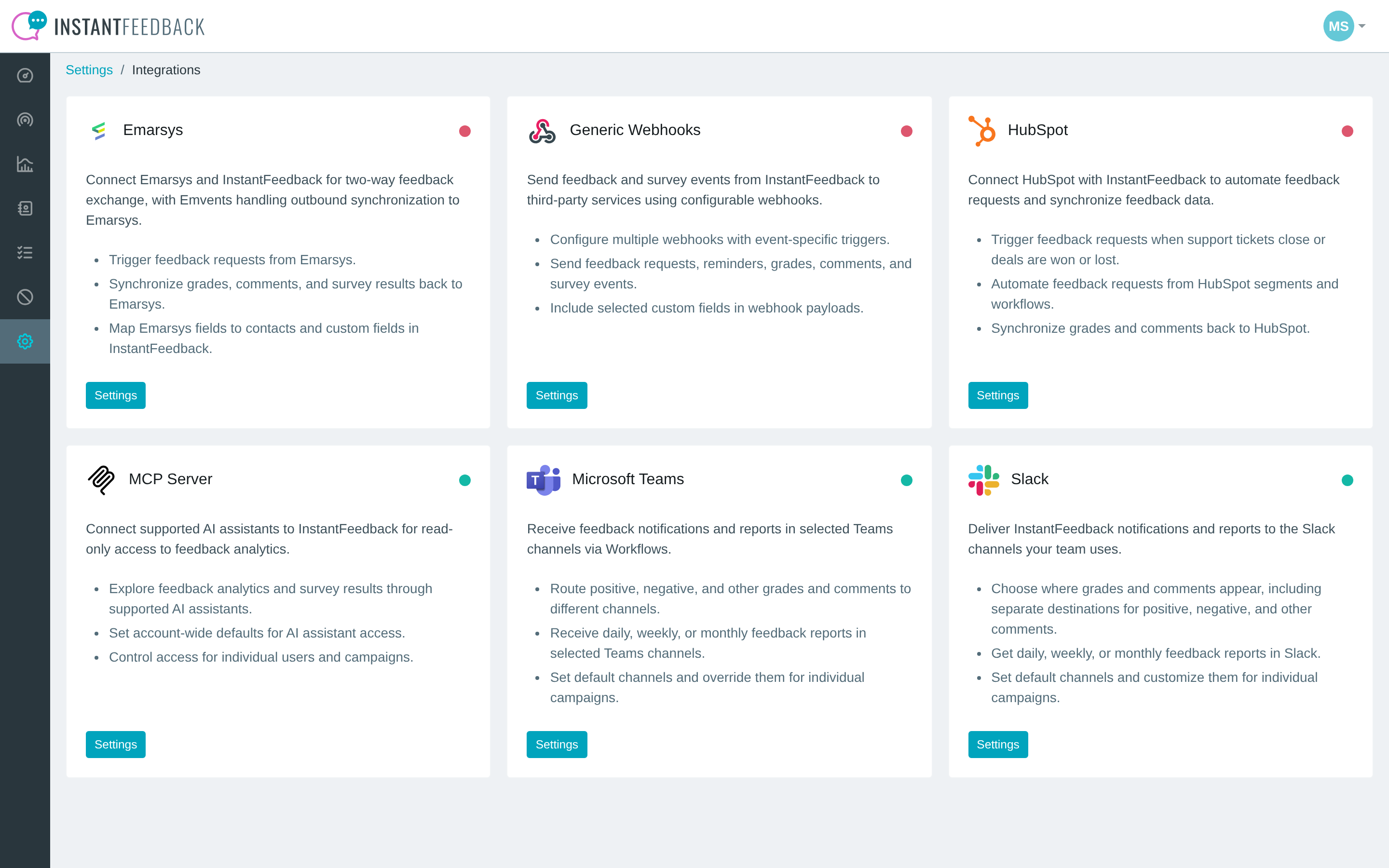
The Integrations page. The Slack tile is active (green dot).
Add a Slack channel
Channels are added through Slack itself, so you never copy webhook URLs by hand.
- On the Channels tab, click Add channel.
- Your browser is sent to Slack. If you are a member of several workspaces, pick the one you want in the top-right corner of the Slack page.
- Choose the channel that should receive messages and click Allow.
- Slack returns you to InstantFeedback. The new channel appears in the table and a confirmation reads Channel #name added successfully.
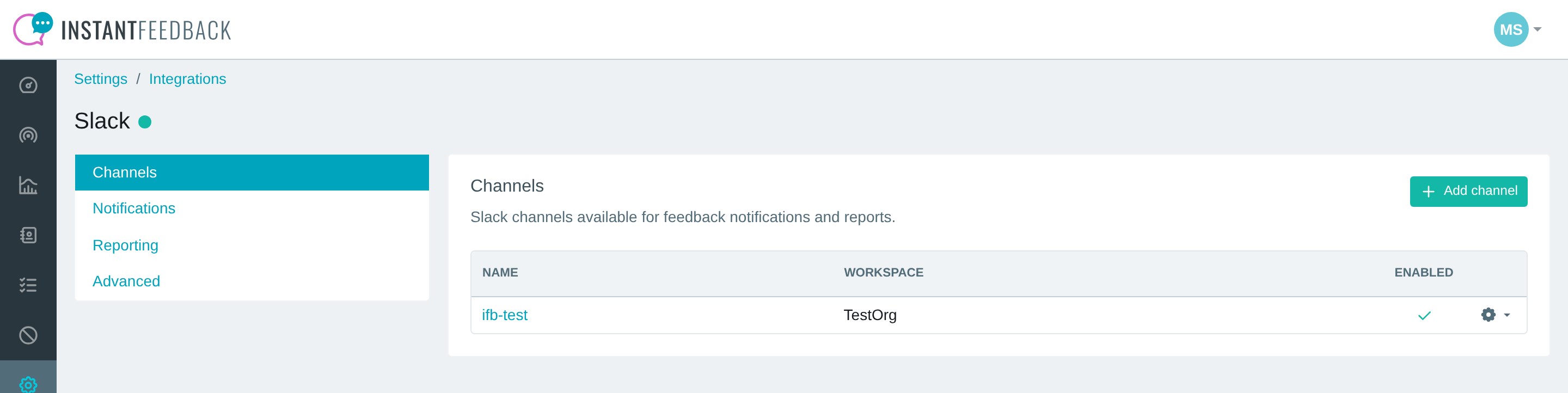
The Channels tab lists every connected channel with its workspace and enabled state.
Repeat the steps for every channel you want to use, for example one for grades and a separate one for negative comments. Adding a channel that is already connected updates the existing entry instead of creating a duplicate.
Private channels
You can connect private channels too. Slack only offers channels you are a member of.
Manage a channel
Click the gear icon at the end of a row to open the channel menu.
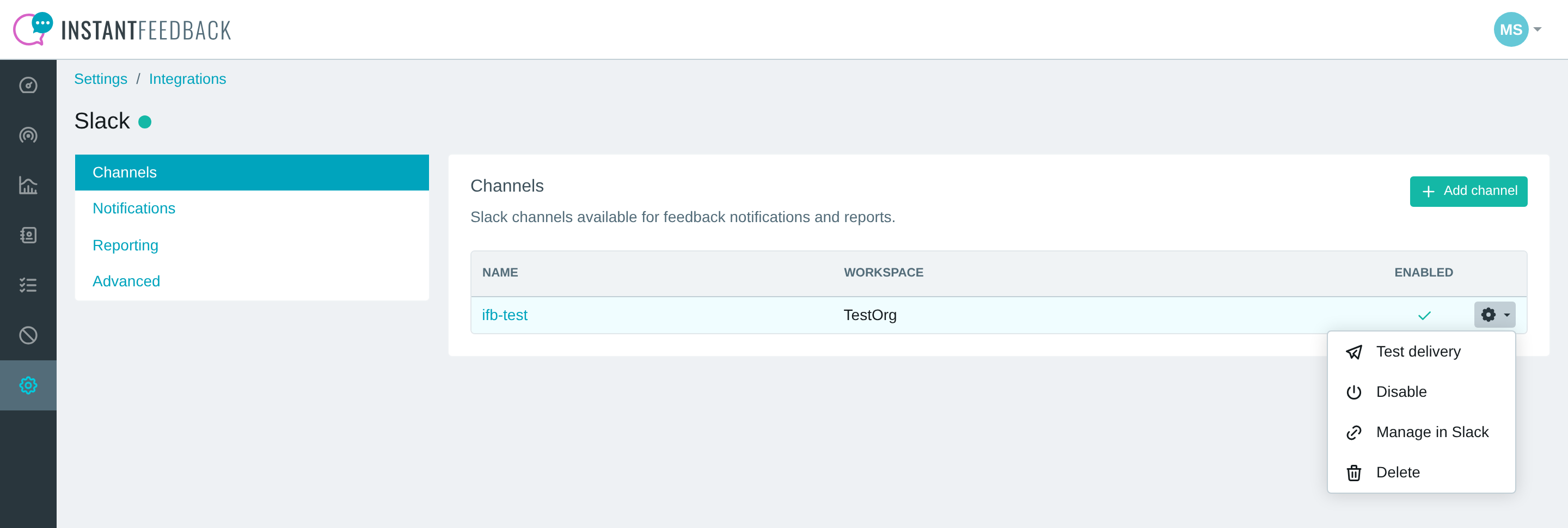
The channel menu.
| Action | What it does |
|---|---|
| Test delivery | Sends a test message to the channel right away and shows the result. |
| Disable / Enable | Pauses or resumes delivery to this channel. Assignments in account and campaign settings are kept. |
| Manage in Slack | Opens the webhook configuration page in Slack in a new tab. |
| Delete | Removes the channel from InstantFeedback. A channel that is still assigned in account or campaign settings cannot be deleted; unassign it first. |
Click the channel name to rename it. The name is only used inside InstantFeedback. Messages are always delivered to the Slack channel you picked when the channel was added.
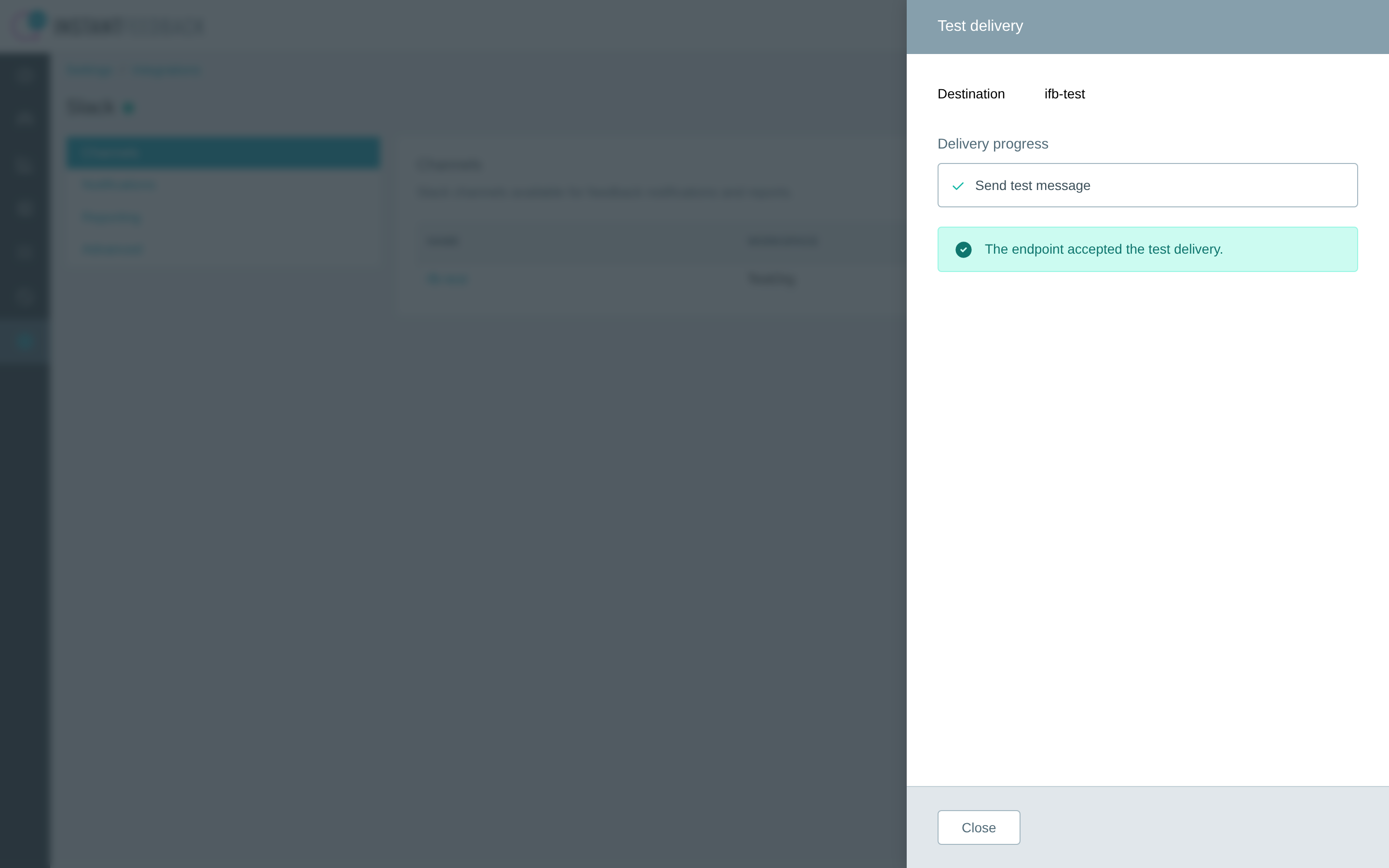
Test delivery confirms that Slack accepted the message.
Default notification channels
The Notifications tab defines where feedback notifications go for all campaigns that do not override the defaults. Click Edit and pick a channel for each of the four types:
| Setting | When it is used |
|---|---|
| For grades | Every time a customer submits a grade. |
| For positive comments | Comments on grades that count as good on the campaign's grading scale. |
| For negative comments | Comments on grades that count as bad on the campaign's grading scale. |
| For other comments | Comments on all remaining grades. |
Leave a setting empty to send nothing for that type.
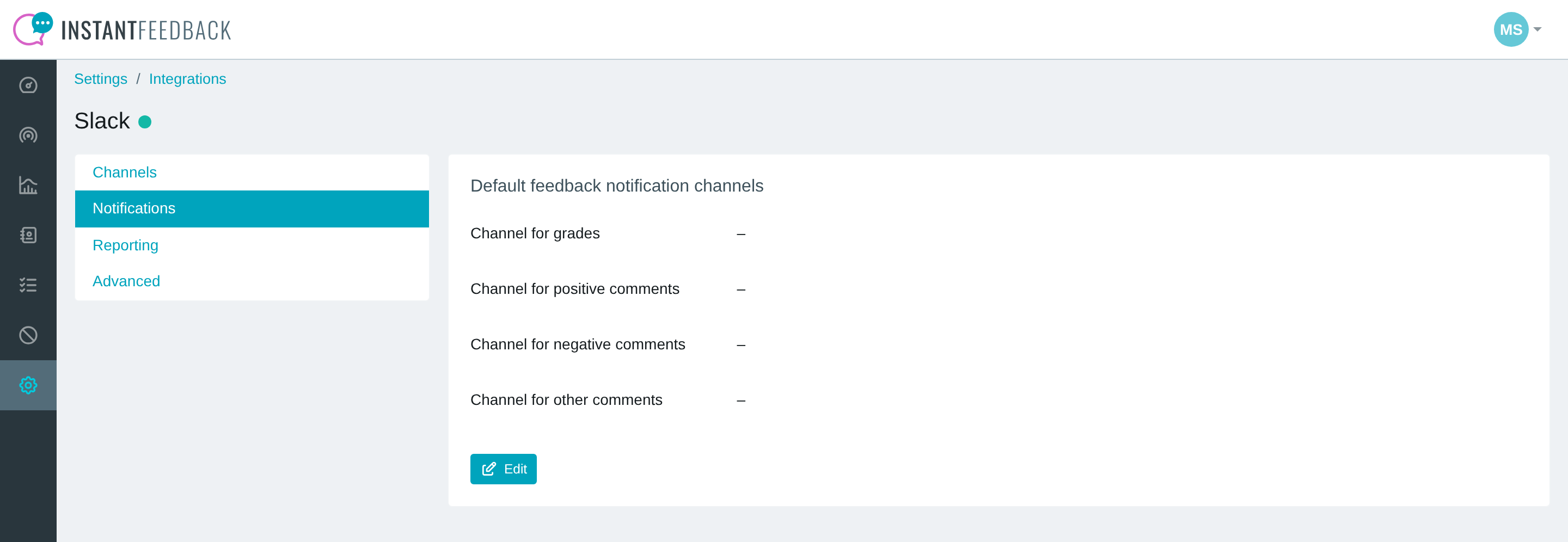
The Notifications tab shows the current defaults.
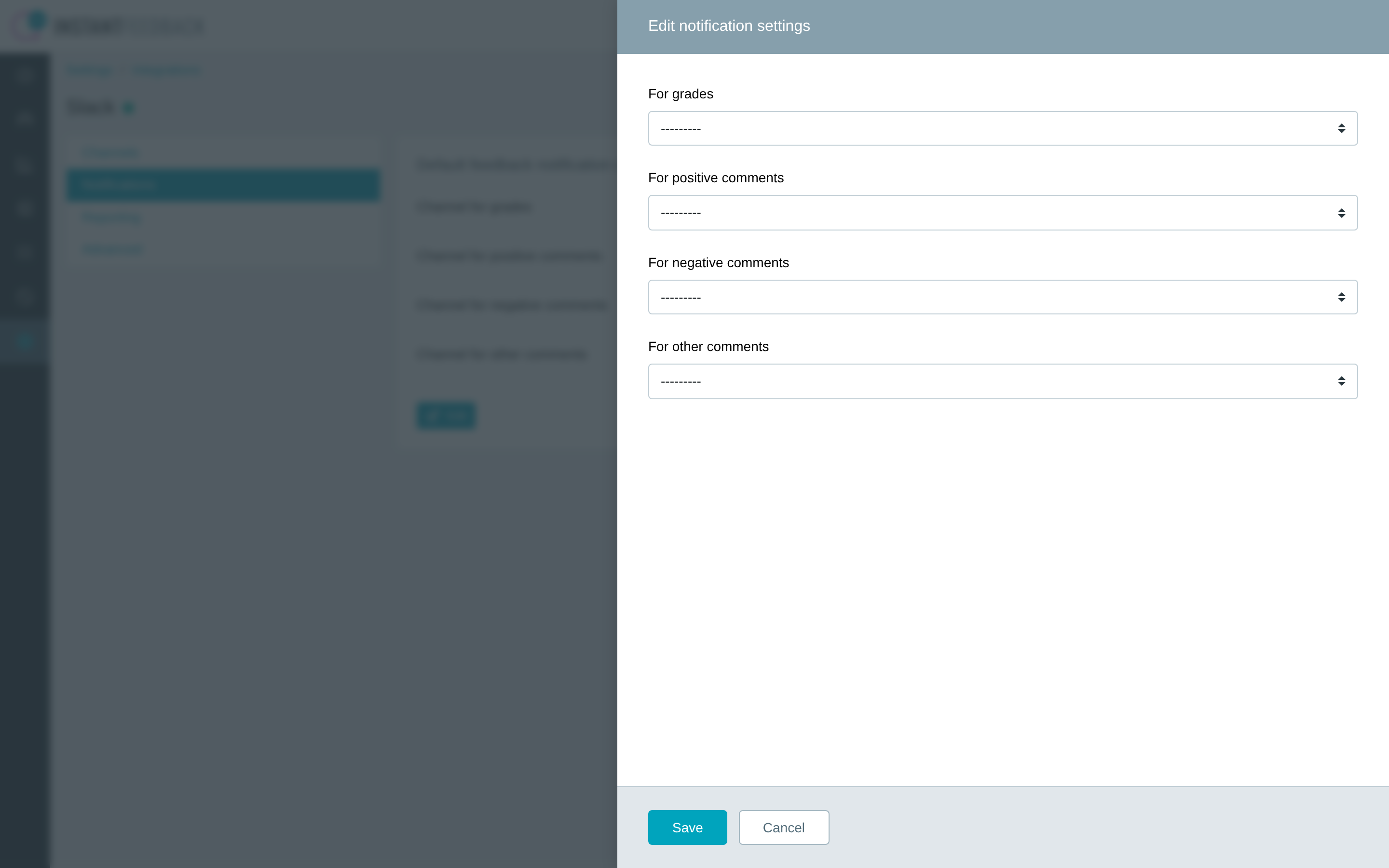
Pick a channel per notification type.
Every message links back to the feedback entry in InstantFeedback with a View details in app button.
Reports
The Reporting tab sets the default report channel and which periodic reports are sent. Click Edit to change them.
| Report | Sent |
|---|---|
| Daily report | Every day at 07:00 for the previous day. |
| Weekly report | Every Monday at 07:15 for the previous week. |
| Monthly report | On the first Monday of the month at 07:30 for the previous month. |
A report is sent per campaign and contains the headline metric of the campaign (NPS, CSAT, average grade, or survey score), its change compared with the previous period, the number of requests, grades, and comments, and a collapsible breakdown per grade. A footer links to the full report in the app.
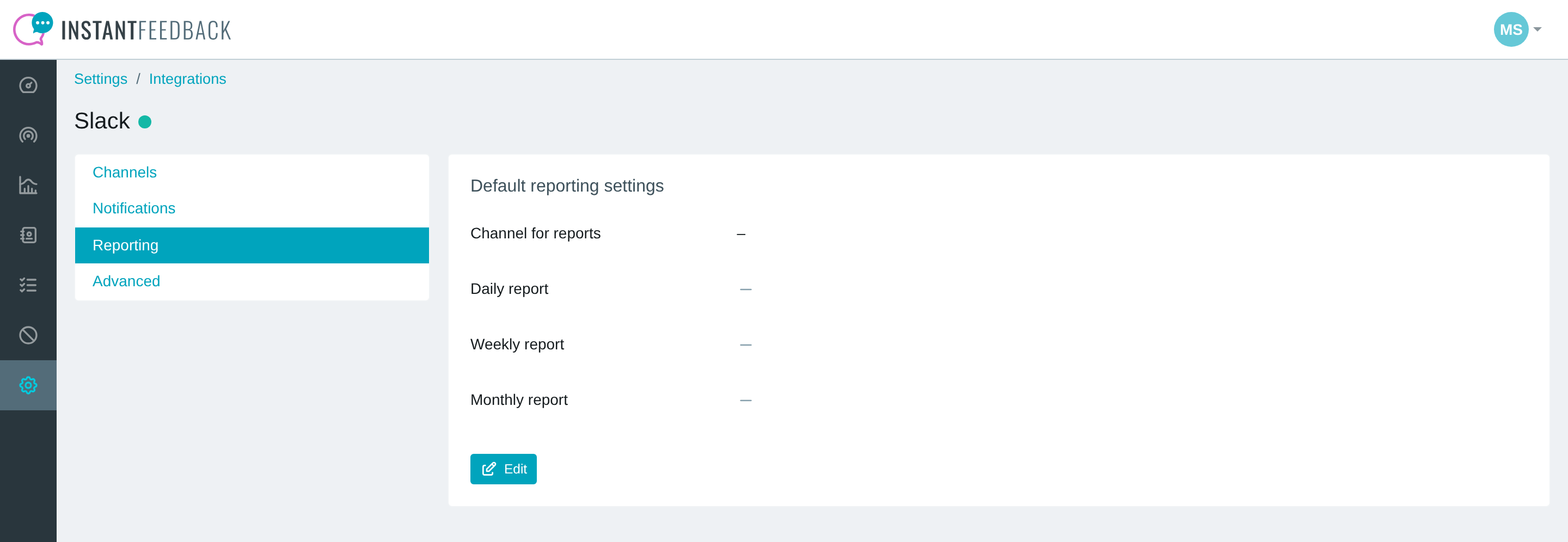
The Reporting tab.
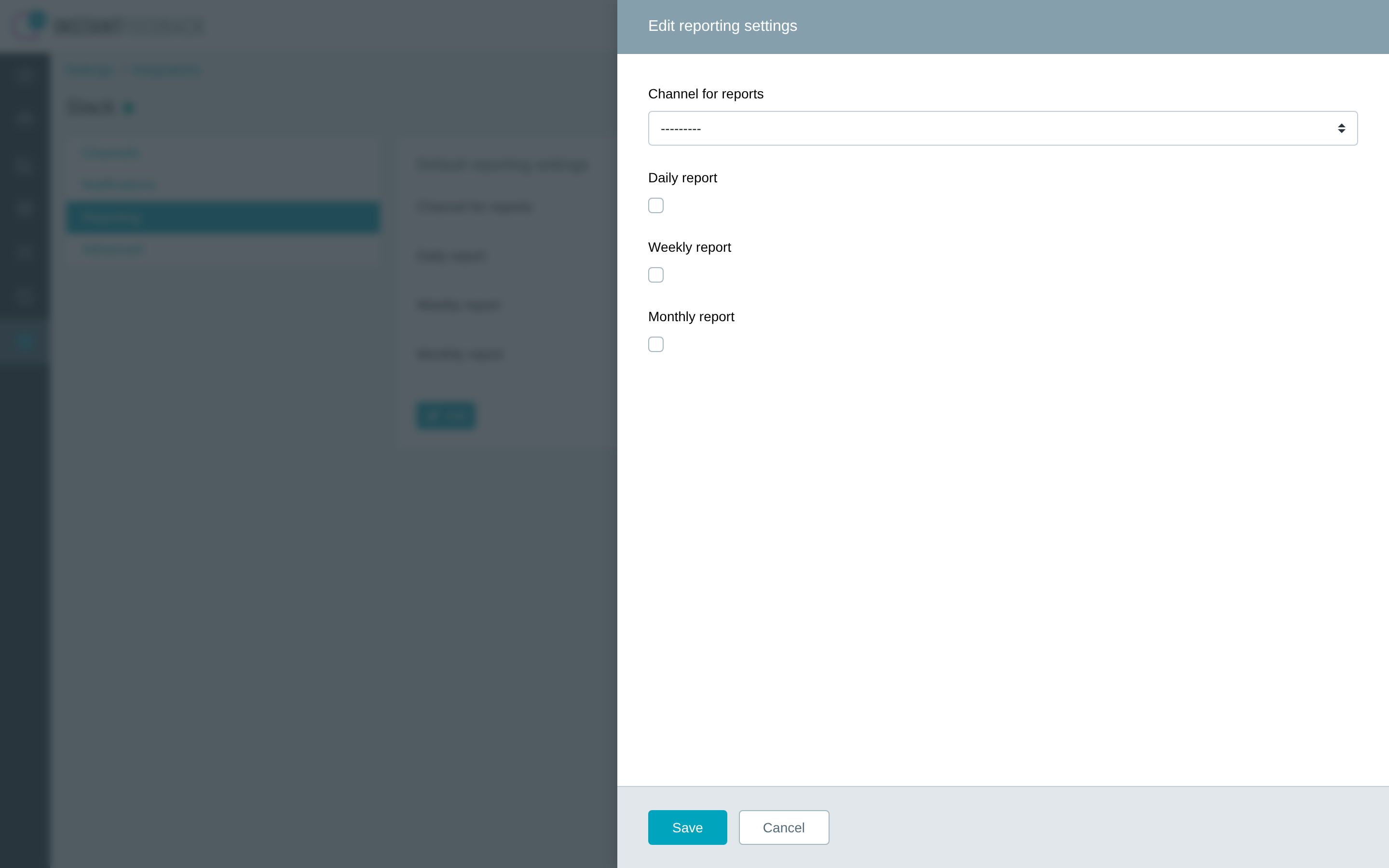
Choose the report channel and switch individual reports on or off.
Note
A report is only sent when it is switched on and a report channel is set, either here or on the campaign.
Per-campaign settings
Every campaign can override the account defaults. Open the campaign, go to Integrations, and select the Slack tab.
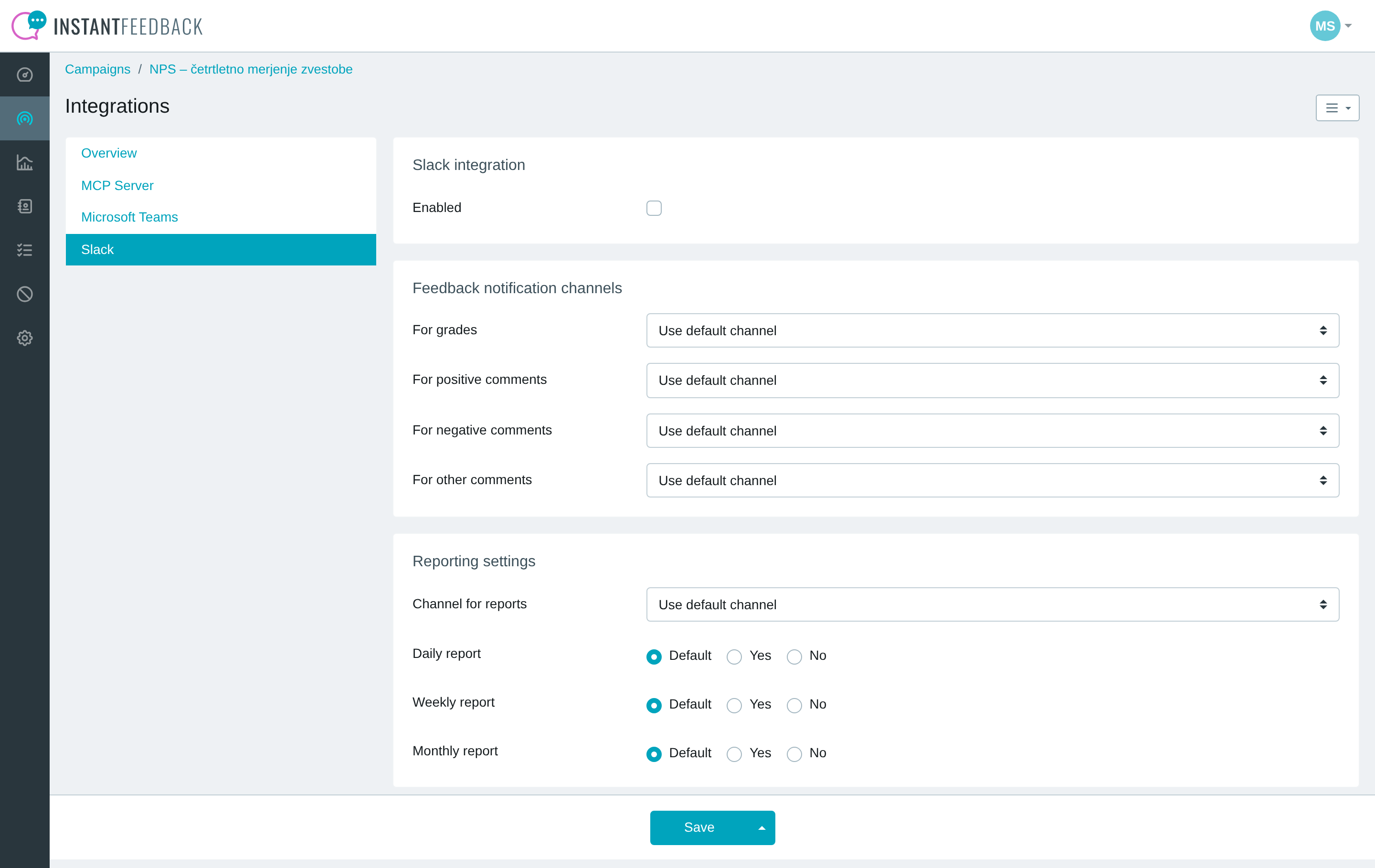
Per-campaign Slack settings.
- Enabled switches Slack delivery on for this campaign. Without it, the campaign sends nothing to Slack even if the account defaults are set.
- For each notification and report channel, choose Use default channel, Do not send, or a specific channel.
- For each report, choose Default to follow the account setting, Yes to always send, or No to never send it for this campaign.
Click Save to apply the changes.
Pause, reset, or remove
The Advanced tab shows how many campaigns have a Slack configuration and offers two account-wide actions.
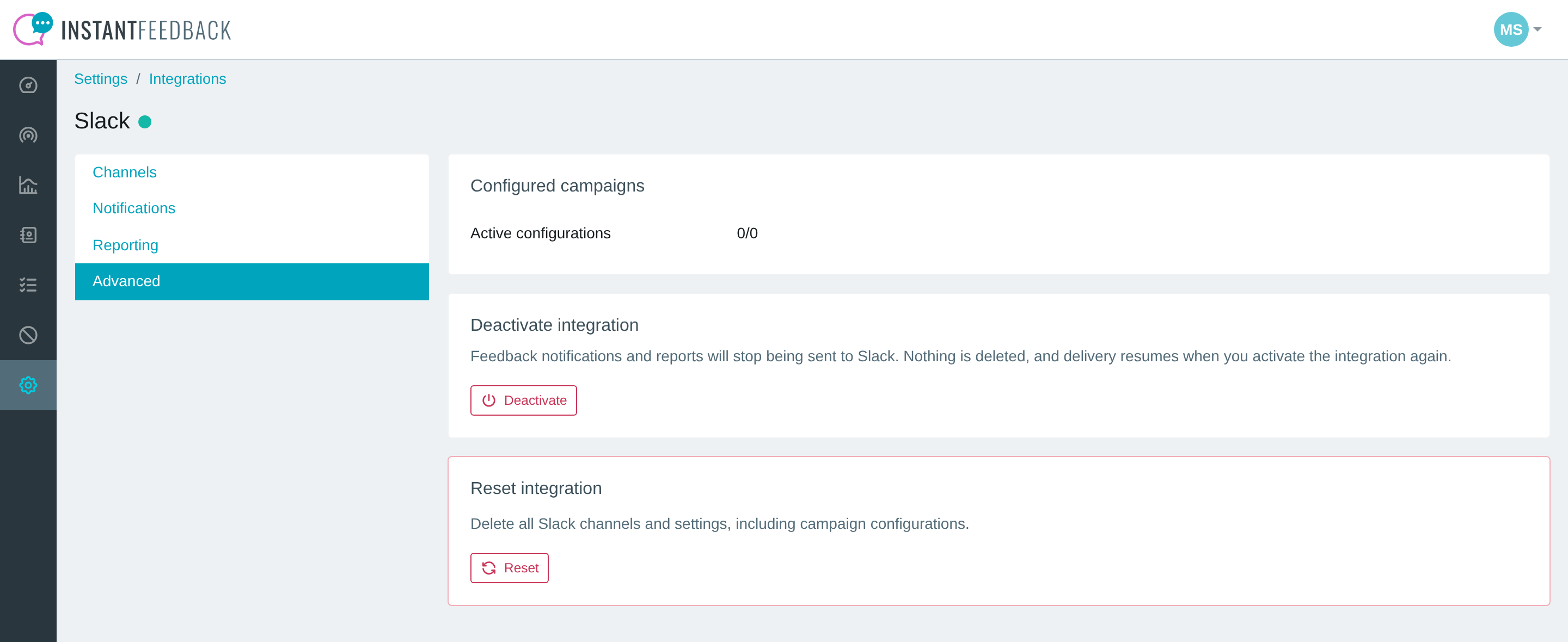
The Advanced tab.
- Deactivate stops all notifications and reports. Nothing is deleted, and delivery resumes when you activate the integration again.
- Reset permanently deletes all channels, notification and reporting settings, and campaign configurations, and deactivates the integration. This cannot be undone.
Webhooks stay in Slack
Resetting or deleting channels in InstantFeedback does not remove the webhooks from Slack. To revoke them, open Manage in Slack for the channel before deleting it, or remove the InstantFeedback app under Apps in your Slack workspace.
Troubleshooting
| Message or symptom | What to do |
|---|---|
| This Slack authorization link has already been used or has expired. Please start again. | Go back to the Channels tab and click Add channel again. |
| The Slack authorization request does not belong to this account. | You switched InstantFeedback accounts while adding the channel. Start again from the account you want to connect. |
| Slack did not complete the authorization. Please try again. | Slack returned an error during authorization. Try again; if it repeats, check that you may install apps in the workspace. |
| Adding a Slack channel was cancelled. | You clicked Cancel on the Slack page. No change was made. |
| Test delivery fails with The endpoint rejected the test (HTTP 404) or similar. | The webhook was removed in Slack. Delete the channel in InstantFeedback and add it again. |
| Test delivery works but no notifications arrive. | Check that the integration is active, the channel is enabled, a channel is assigned for that notification type, and the campaign has Slack Enabled on its Integrations tab. |
| Reports do not arrive. | Check that the report is switched on and a report channel is set at account or campaign level. Reports are only sent for the periods listed above. |