Generic Webhooks integration
The Generic Webhooks integration sends feedback and survey events from InstantFeedback to
any HTTPS endpoint you control, as JSON over HTTP POST. Use it to feed your CRM, data
warehouse, automation platform, or your own code. Once it is set up, you get:
- A request to your endpoint for every feedback request sent, reminder sent, grade received, comment received, survey started, and survey completed.
- Several webhooks per account, each subscribed to the events you choose, with an account-wide default and per-campaign overrides.
- Selected custom fields included in the payload, chosen per campaign.
- Every request signed with an HMAC-SHA256 signature, so your endpoint can verify that it came from InstantFeedback.
- Automatic retries with increasing delays when your endpoint is temporarily unavailable.
Data flows one way, from InstantFeedback to your endpoint. InstantFeedback only looks at the HTTP status code your endpoint returns.
Before you start
- You need the admin role on the InstantFeedback account. Other members can view the webhook settings but cannot change them.
- You need an endpoint that accepts
POSTrequests with a JSON body and answers with an HTTP2xxstatus within 30 seconds. Use anhttps://URL so the payload, which contains customer contact details, is encrypted in transit. - If you want to verify signatures, your endpoint needs access to the raw request body and the account's webhook secret (see Verify the signature).
Enable the integration
- Open Settings → Integrations. Each tile shows a coloured dot: green when the integration is active, red when it is not.
- On the Generic Webhooks tile, click Settings. The first click creates the webhook configuration for your account, generates the account's webhook secret, and opens the Generic Webhooks settings page.
- If the page title shows a red dot, click Activate in the top-right corner and confirm.
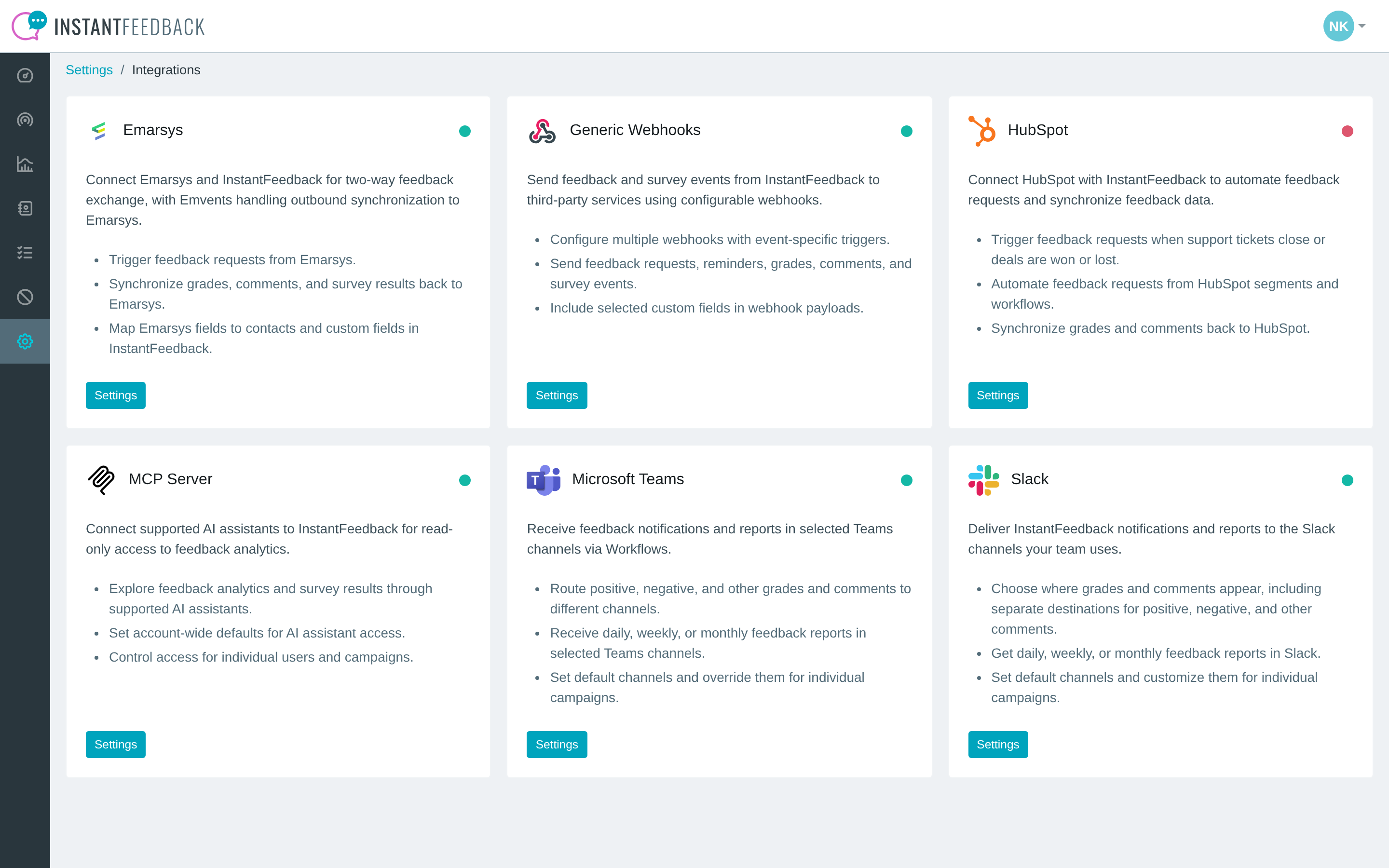
The Integrations page. The Generic Webhooks tile is active (green dot).
Add a webhook
A webhook in InstantFeedback is a named endpoint URL together with the list of events (triggers) it should receive.
- On the Webhooks tab, click Add webhook.
- Enter a Name that describes the destination. The name is only used inside InstantFeedback.
- Paste the endpoint into Webhook URL.
- Under Trigger, tick every event this endpoint should receive. Each option shows the event's label and its machine name, for example Grade received (appeal.grade). At least one trigger is required.
- Click Save. The webhook appears in the table and a confirmation reads Webhook name added successfully.
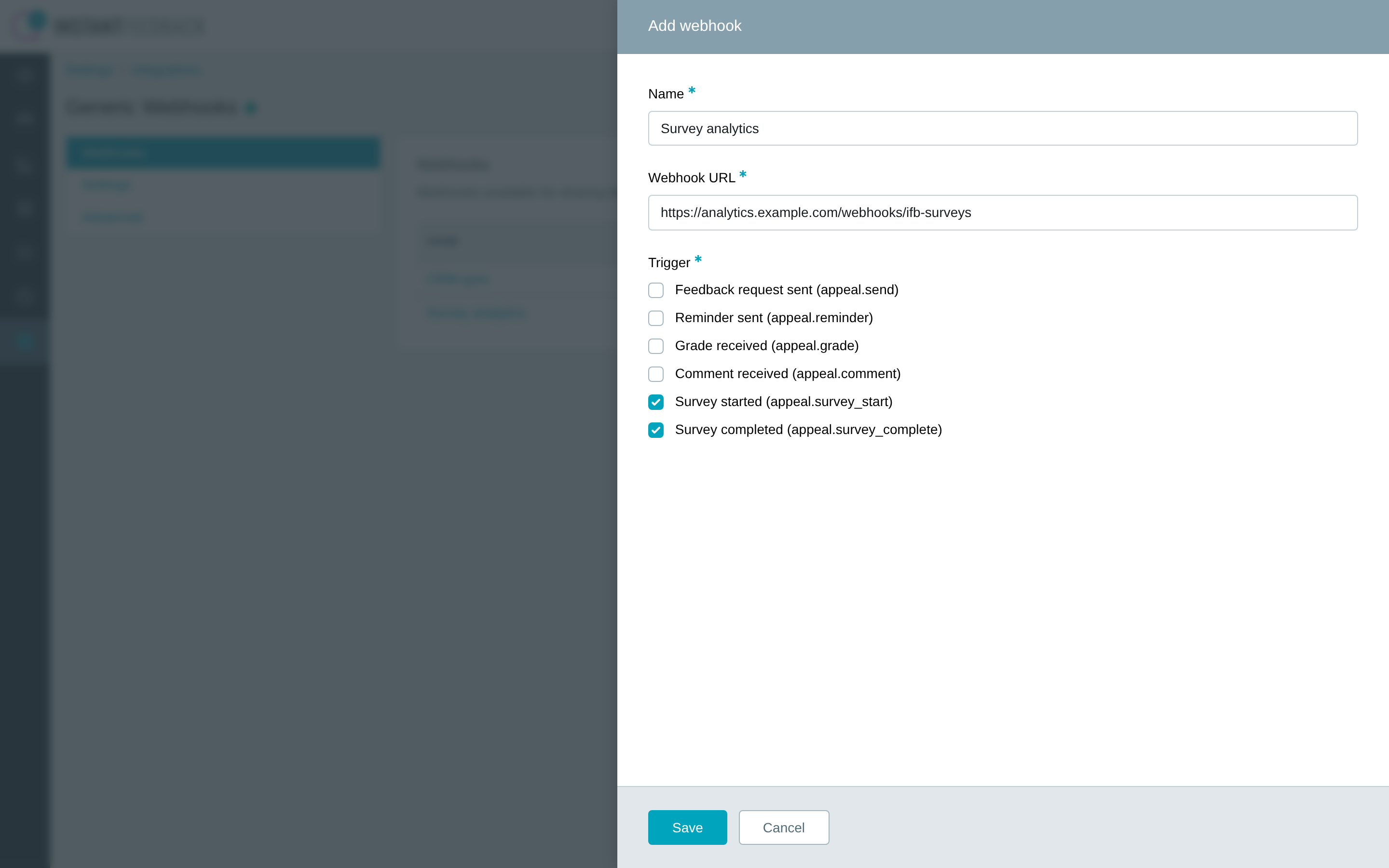
Name the webhook, paste the URL, and tick the events it should receive.
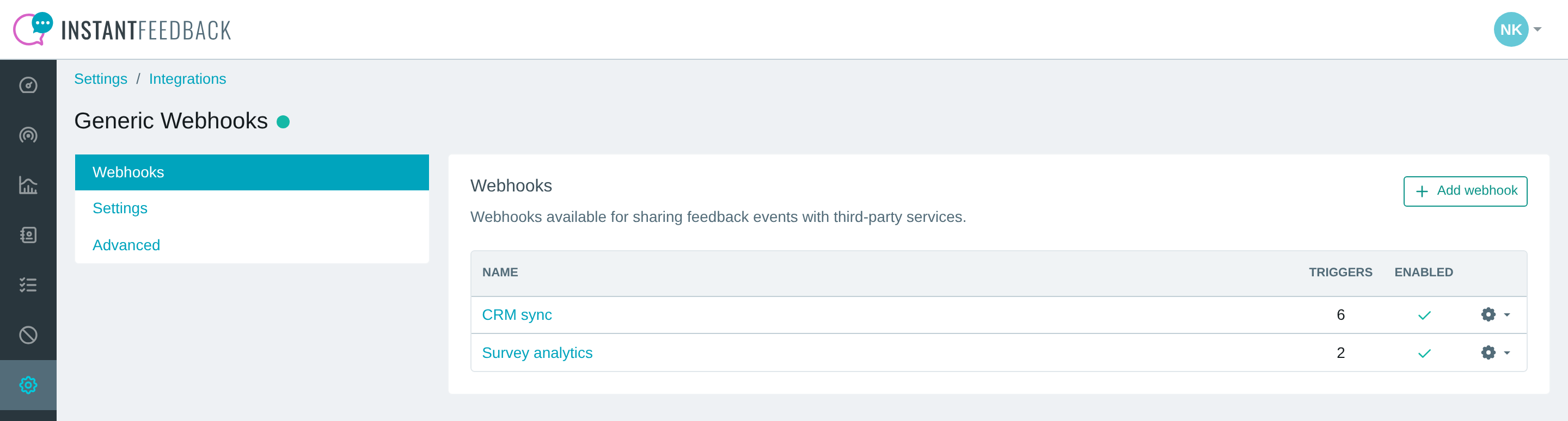
The Webhooks tab lists every webhook with the number of triggers it has and whether it is enabled.
Repeat the steps for every endpoint you want to use, for example one that receives all events and a separate one that only receives survey events.
Test right away
After adding a webhook, run Test delivery from the webhook menu (see below) to make sure the URL works before you assign it to campaigns.
Manage a webhook
Click the gear icon at the end of a row to open the webhook menu.
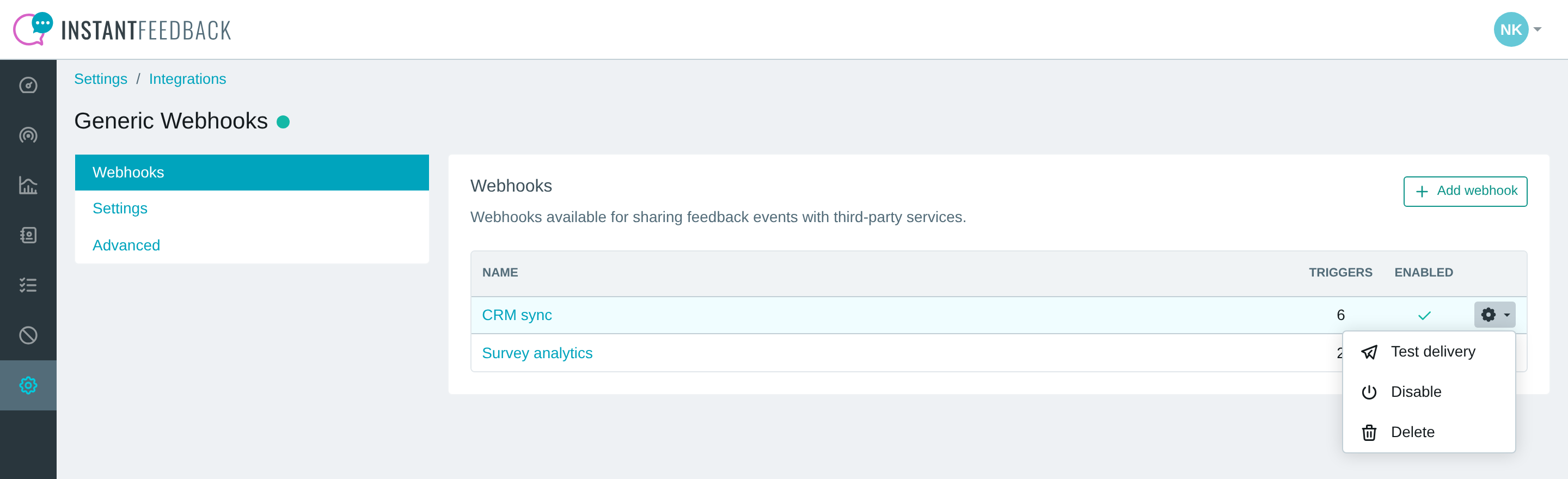
The webhook menu.
| Action | What it does |
|---|---|
| Test delivery | Sends a signed test payload to the endpoint right away and shows the result. |
| Disable / Enable | Pauses or resumes delivery to this webhook for every campaign that uses it. Assignments in account and campaign settings are kept. |
| Delete | Removes the webhook from InstantFeedback. A webhook that is still assigned as the default or on a campaign cannot be deleted; unassign it first. |
Click the webhook name to change its name, URL, or triggers. A confirmation reads Webhook name updated.
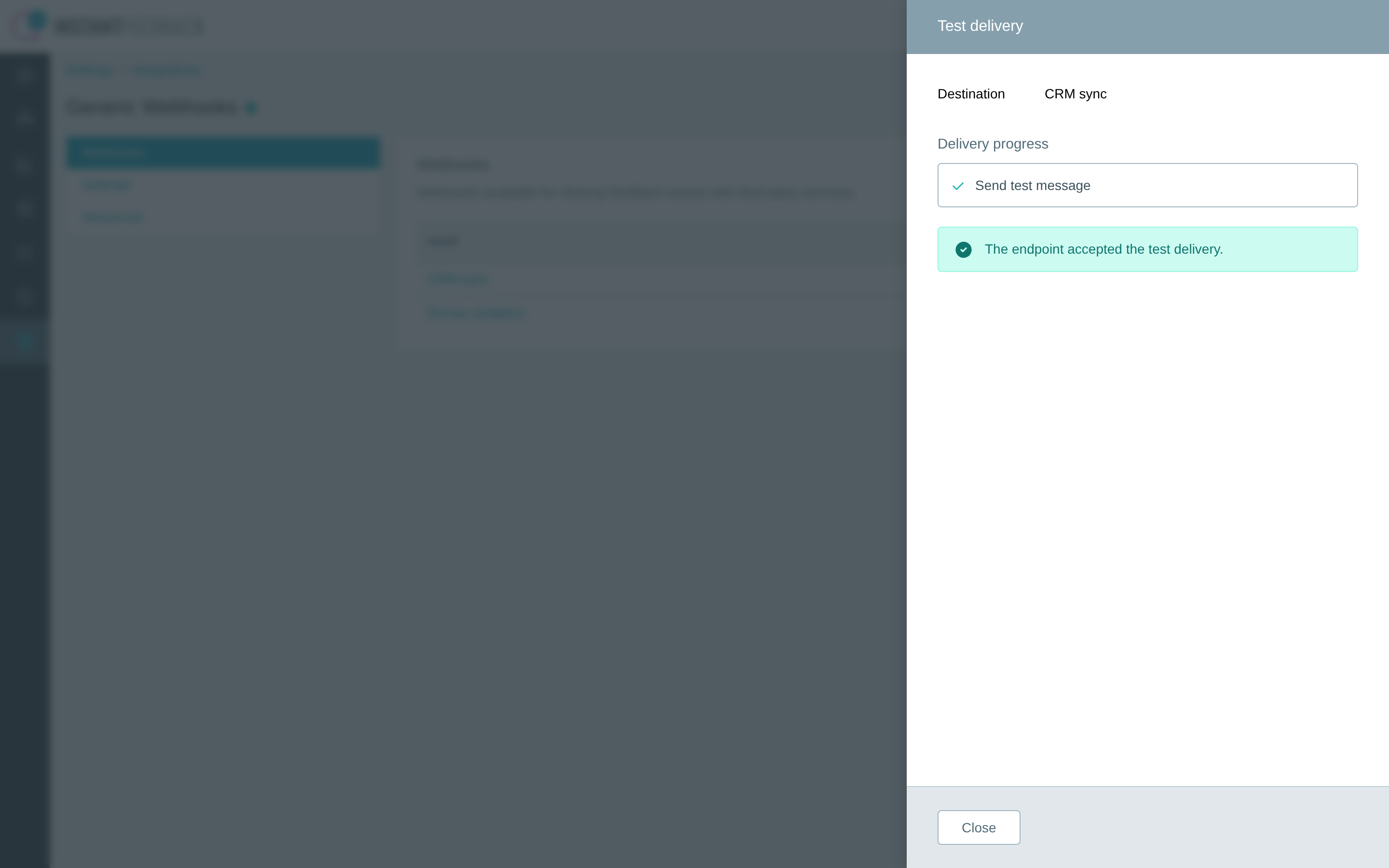
Test delivery confirms that the endpoint accepted the request.
The test sends the following body, signed like any other delivery:
{"event": "test", "data": []}
A test succeeds when the endpoint answers with any 2xx status. It uses shorter timeouts
than regular deliveries (3 seconds to connect, 10 seconds for the response) and is not
retried.
Default webhook and secret
The Settings tab holds two account-wide settings.
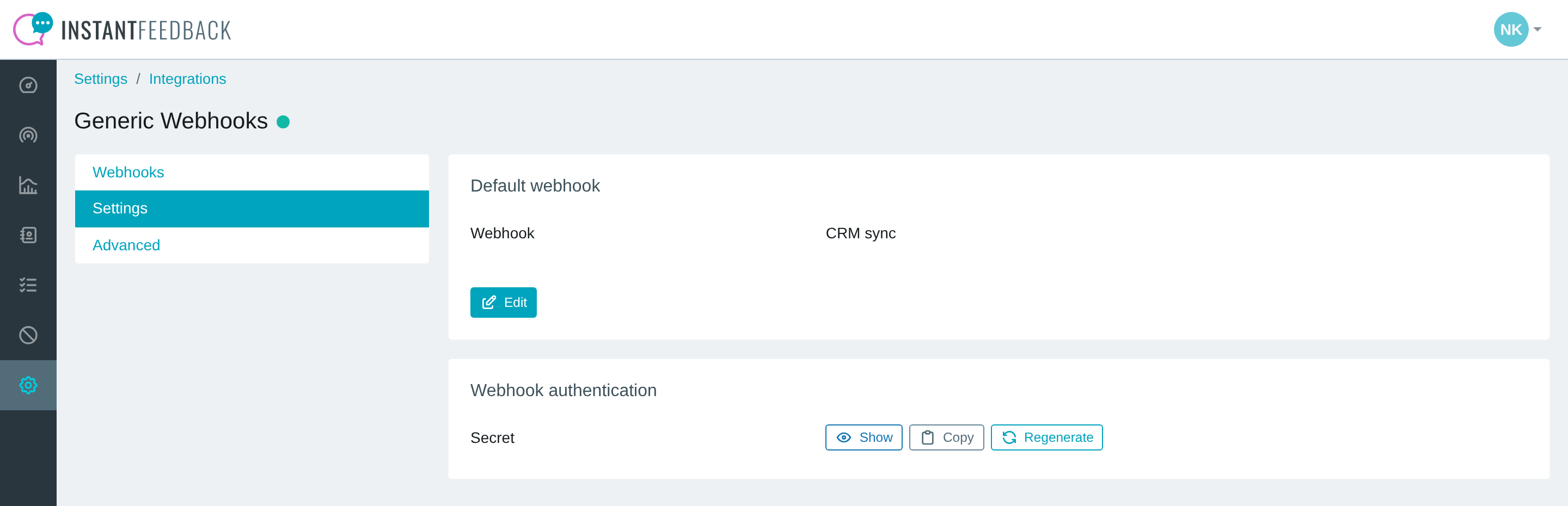
The Settings tab shows the default webhook and the account's webhook secret.
Default webhook
The Default webhook is used by every campaign that has webhook delivery enabled and keeps Use default webhook selected. Click Edit, pick a webhook, and click Save. A confirmation reads Settings updated successfully. Leave the setting empty if every campaign should pick its own webhook.
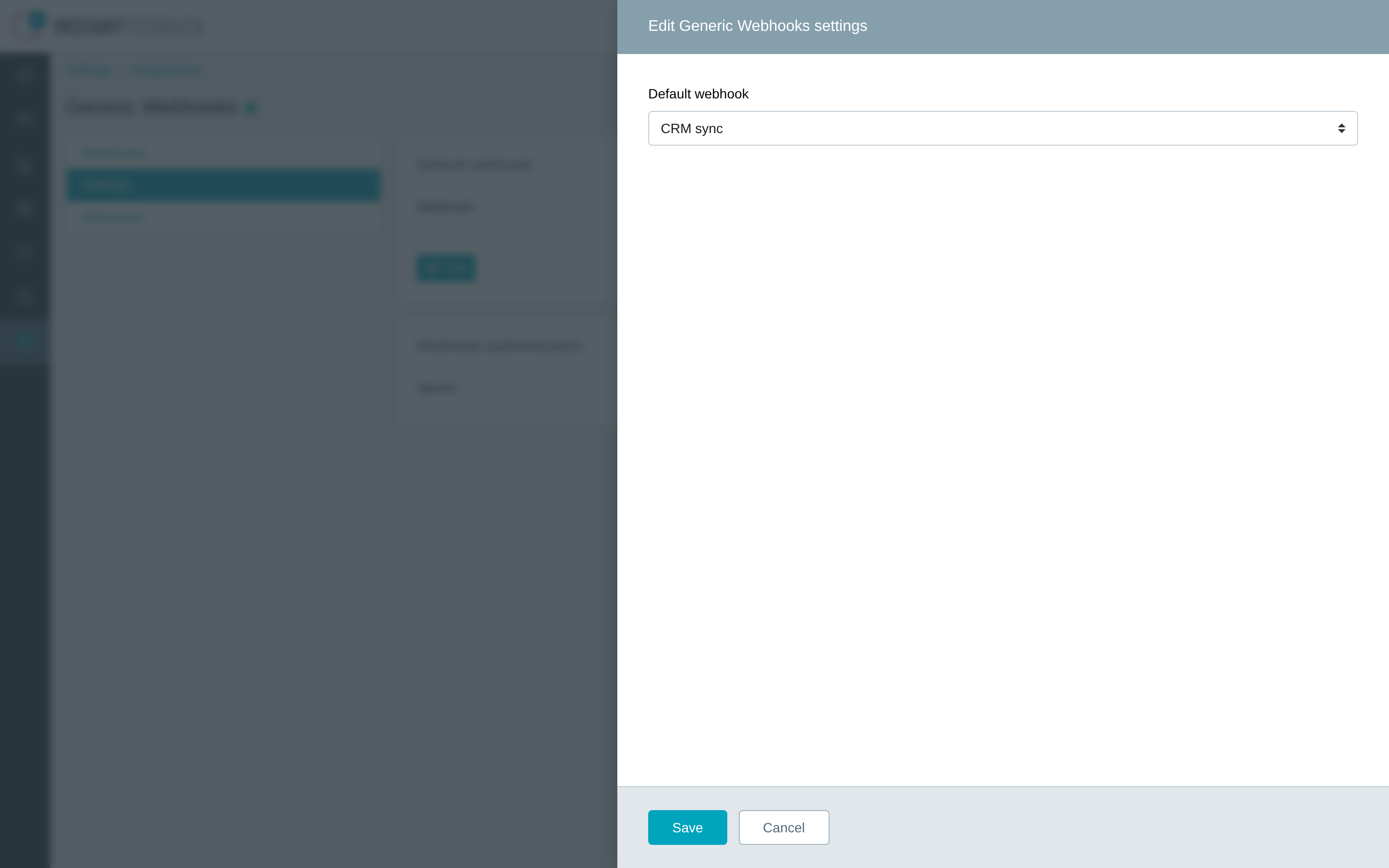
Pick the account-wide default webhook.
Webhook authentication
Under Webhook authentication, the Secret is the key used to sign every request (see Verify the signature). One secret applies to all webhooks in the account.
- Show opens a dialog with the secret so you can read or copy it.
- Copy copies the secret to the clipboard without showing it.
- Regenerate replaces the secret with a new one and confirms with Secret regenerated successfully.
Regenerating invalidates the old secret
Deliveries are signed with the new secret immediately. Update the secret on every endpoint before you regenerate it, or signature checks on your side start failing.
Per-campaign settings
Webhooks are delivered only for campaigns that have the integration switched on. Open the campaign, go to Integrations, and select the Generic Webhooks tab.
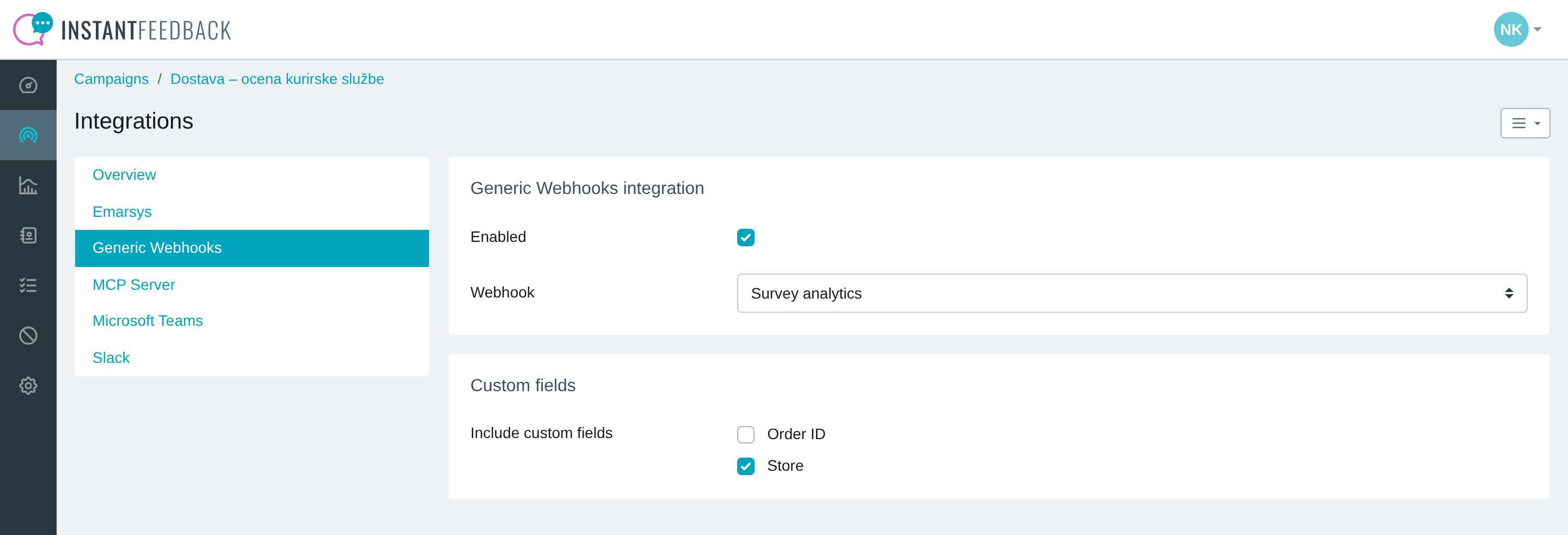
Per-campaign webhook settings.
- Enabled switches webhook delivery on for this campaign. Without it, the campaign sends nothing, even if a default webhook is set.
- Webhook chooses where this campaign's events go: Use default webhook follows the account setting, or pick a specific webhook from the list.
- Include custom fields lists the campaign's custom fields. Tick the ones that should be added to every payload for this campaign. The section only appears when the campaign has custom fields.
Click Save to apply the changes. A confirmation reads Integration settings updated successfully.
Which webhook receives an event
Each event is delivered to at most one webhook per campaign: the webhook selected on the campaign, or the default webhook when Use default webhook is selected. The event is sent only if that webhook is enabled and has the event ticked under Trigger. If it does not, the event is skipped; InstantFeedback does not fall back to another webhook.
Personal data in payloads
Every payload includes the recipient's contact (phone number, email address, or identifier), and the custom fields you tick are sent as stored, including fields marked as personal information. Only send this data to endpoints that are allowed to process it.
Payload reference
Request
Every delivery is an HTTP POST to the webhook URL with these headers:
| Header | Value |
|---|---|
Content-Type |
application/json |
X-IFB-Signature |
Hex-encoded HMAC-SHA256 of the request body, keyed with the account's webhook secret. |
Redirects are not followed: a 3xx answer counts as a failed delivery. The body is a
single-line JSON document in which non-ASCII characters are escaped as \uXXXX sequences;
the examples below are indented for readability only.
Verify the signature
The signature is computed over the exact bytes of the request body, using the secret from the Settings tab as the key:
X-IFB-Signature = hex( HMAC-SHA256( key = secret, message = raw_body ) )
Compute the same value on your side and compare it with the header using a constant-time comparison. Always use the raw body as received, not a re-serialised version of the parsed JSON.
import hashlib
import hmac

def is_valid(raw_body: bytes, header: str, secret: str) -> bool:
    expected = hmac.new(secret.encode(), raw_body, hashlib.sha256).hexdigest()
    return hmac.compare_digest(expected, header)
const crypto = require("crypto");

function isValid(rawBody, header, secret) {
  const expected = crypto.createHmac("sha256", secret).update(rawBody).digest("hex");
  return crypto.timingSafeEqual(Buffer.from(expected), Buffer.from(header));
}
Envelope
Every body has the same shape: the event name and a list of the feedback requests the event applies to.
{
  "event": "appeal.grade",
  "data": [ { "...": "one object per feedback request" } ]
}
For appeal.send and appeal.reminder, one request is sent per campaign for every outgoing
batch, so data can hold many objects. For all other events data holds exactly one object.
Events
| Event | Label in the app | When it is sent |
|---|---|---|
appeal.send |
Feedback request sent | After a batch of SMS or email feedback requests has been sent. |
appeal.reminder |
Reminder sent | After a batch of SMS or email reminders has been sent. |
appeal.grade |
Grade received | When a customer submits a grade by SMS, email link, or widget, or when a feedback record with a grade is created through the API. |
appeal.comment |
Comment received | When a customer submits a comment by SMS or widget, or when a feedback record with a comment is created through the API. |
appeal.survey_start |
Survey started | When a customer starts the survey, that is when the survey widget reports its first progress. |
appeal.survey_complete |
Survey completed | When a customer submits the survey. |
test |
Test delivery | Only when you run Test delivery; data is empty. |
Fields
Every object in data has these fields:
| Field | Type | Meaning |
|---|---|---|
id |
integer | The feedback request's ID in InstantFeedback. Stable across events, so you can match a grade to the request it belongs to. |
type |
string | How the request was delivered: sms, email, widget, or external. |
campaign |
object | id and name of the campaign. |
contact |
string | The phone number for sms, the email address for email, otherwise the identifier passed to the widget or API. Can be an empty string. |
date |
string | ISO 8601 timestamp with UTC offset (for example 2026-09-21T08:15:30.412873+00:00) of the moment the event refers to; see the table below. |
custom_fields |
object | Present only when at least one custom field is ticked for the campaign. Keys are the custom fields' keys, values are the stored text or null when the request has no value for that field. |
Depending on the event, these fields are added:
| Event | date refers to |
Additional fields |
|---|---|---|
appeal.send |
When the request was scheduled to go out. | – |
appeal.reminder |
When the reminder was scheduled to go out. | – |
appeal.grade |
When the grade was received. | grade (integer, on the campaign's grading scale) |
appeal.comment |
When the comment was received. | grade (if the request has been graded), comment (string) |
appeal.survey_start |
When the survey was started. | grade (if graded), survey (id and name) |
appeal.survey_complete |
When the survey was completed. | grade (if graded), survey, survey_response (list of answers, see below) |
Each entry of survey_response has the question's id, the question text, and the
value: a string for most question types, a list of strings for multiple-choice questions,
or null when the question was not answered. Questions are listed in survey order.
Examples
A grade with two custom fields:
{
  "event": "appeal.grade",
  "data": [
    {
      "id": 481523,
      "type": "email",
      "campaign": {"id": 42, "name": "Car service"},
      "contact": "ana.novak@example.com",
      "date": "2026-09-21T08:15:30.412873+00:00",
      "grade": 9,
      "custom_fields": {"store": "Ljubljana", "order_number": "SO-10422"}
    }
  ]
}
A comment, which repeats the grade the customer gave earlier:
{
  "event": "appeal.comment",
  "data": [
    {
      "id": 481523,
      "type": "email",
      "campaign": {"id": 42, "name": "Car service"},
      "contact": "ana.novak@example.com",
      "date": "2026-09-21T08:17:02.105311+00:00",
      "grade": 9,
      "comment": "Quick turnaround and the car was washed. Thank you!",
      "custom_fields": {"store": "Ljubljana", "order_number": "SO-10422"}
    }
  ]
}
A batch of SMS requests sent for one campaign, without custom fields:
{
  "event": "appeal.send",
  "data": [
    {
      "id": 481601,
      "type": "sms",
      "campaign": {"id": 17, "name": "Store visit"},
      "contact": "+38640123456",
      "date": "2026-09-21T09:00:00+00:00"
    },
    {
      "id": 481602,
      "type": "sms",
      "campaign": {"id": 17, "name": "Store visit"},
      "contact": "+38641987654",
      "date": "2026-09-21T09:00:00+00:00"
    }
  ]
}
A completed survey:
{
  "event": "appeal.survey_complete",
  "data": [
    {
      "id": 481777,
      "type": "widget",
      "campaign": {"id": 58, "name": "Onboarding survey"},
      "contact": "session-8f3a2c",
      "date": "2026-09-21T10:42:19.884120+00:00",
      "grade": 8,
      "survey": {"id": 6, "name": "Onboarding"},
      "survey_response": [
        {"id": 31, "question": "How easy was it to get started?", "value": "4"},
        {"id": 32, "question": "Which features have you used?", "value": ["Reports", "Exports"]},
        {"id": 33, "question": "Anything we should improve?", "value": null}
      ]
    }
  ]
}
Delivery and retries
- Deliveries run in the background shortly after the event happens. InstantFeedback waits up to 6 seconds to connect and up to 30 seconds for your endpoint's response.
- Any
2xxstatus counts as delivered. The response body is ignored. - A timeout, a connection error, or an HTTP
408,429, or5xxresponse is treated as temporary and the delivery is retried with the same body and signature. If the response carries aRetry-Afterheader (seconds or an HTTP date), InstantFeedback waits at least that long, up to the longest interval below. - Any other response, including
3xxredirects and other4xxerrors, is treated as permanent and the delivery is not retried. - Retries happen after about 1 minute, 5 minutes, 15 minutes, 30 minutes, and 59 minutes (each with a few seconds of random jitter). After the fifth retry fails, the delivery is given up.
- Before every attempt, including retries, InstantFeedback checks that the integration is active and the webhook is still enabled and exists. If not, the delivery is dropped.
- Failed deliveries are not shown in the app. Keep logs on your endpoint if you need an audit trail.
Make your endpoint idempotent
If your endpoint processes a request but answers late or with an error, InstantFeedback
retries it and you receive the same event twice. Use event together with the request
id to recognise duplicates.
Pause, reset, or remove
The Advanced tab shows how many campaigns have a webhook configuration and offers two account-wide actions.
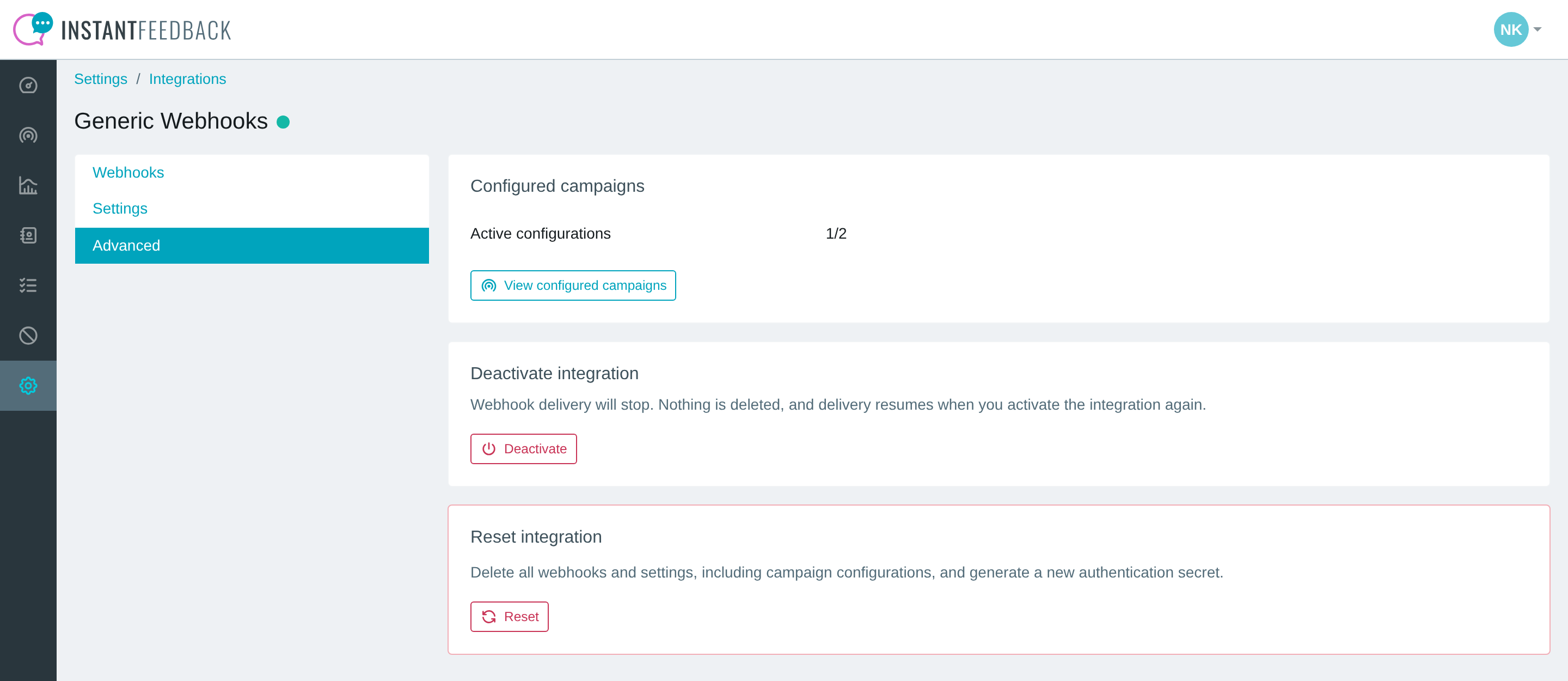
The Advanced tab.
- Configured campaigns shows the number of active configurations out of all saved ones. View configured campaigns lists them with a link to each campaign's settings.
- Deactivate stops all webhook deliveries. Nothing is deleted, and delivery resumes when you activate the integration again.
- Reset permanently deletes all webhooks, the default webhook setting, and all campaign configurations, deactivates the integration, and generates a new webhook secret. You have to type RESET to confirm. This cannot be undone.
Troubleshooting
| Message or symptom | What to do |
|---|---|
| Enter a valid URL. when saving a webhook | The URL is incomplete or contains a typo. It must start with https:// (or http://) and include the host. |
| Test delivery fails with The endpoint rejected the test (HTTP 4xx) or (HTTP 3xx). | Your endpoint returned an error or a redirect. Check the path, that it accepts POST with a JSON body without extra authentication, and that it does not redirect. Click the webhook name to correct the URL. |
| Test delivery fails with Could not connect to the endpoint. | The host could not be resolved or reached. Check the hostname, port, firewall, and that the endpoint is reachable from the internet. |
| Test delivery fails with The endpoint did not respond in time. | The endpoint took more than 10 seconds to answer the test. Respond with 2xx first and process the payload afterwards. |
| Could not retrieve the delivery result. The test message may have been sent. | The browser lost the connection while the test was running. Check your endpoint's logs and run the test again. |
| Test delivery works but no events arrive. | Check that the integration is active, the webhook is enabled and has the event ticked under Trigger, and the campaign has Enabled switched on and this webhook (or Use default webhook with a default set) on its Integrations tab. |
| Events arrive for some campaigns but not others. | The webhook selected on the missing campaign does not have that event ticked or is disabled. Events are not redirected to another webhook. |
| The signature does not match. | Compute the HMAC over the raw request bytes, not over re-serialised JSON, and compare the hex digest with the header. If the secret was regenerated, copy the new one from the Settings tab. |
| The same event arrives twice. | Your endpoint answered late or with a 408, 429, or 5xx status, so the delivery was retried. Answer 2xx within 30 seconds and de-duplicate on event and id. |
| Unassign this webhook from account and campaign settings before deleting it. | The webhook is still the default webhook or is selected on a campaign. Remove those assignments first, then delete the webhook. |
| Confirmation phrase does not match. | Type RESET exactly in the confirmation field of the Reset dialog. |